
How to Set Up and Use Google Antigravity
How to Set Up and Use Google Antigravity
What is Google Antigravity?
Google Antigravity is Google's free AI-powered IDE that lets developers build software using autonomous agents instead of writing code line by line. Powered by Gemini 3 Pro, it features an Agent Manager for orchestrating tasks, a built-in browser for testing, and support for multi-agent collaboration. This guide shows you how to install Google Antigravity, set up the Agent Manager, and build your first project using agent-driven development.
Released in November 2025, Google Antigravity represents a shift from traditional manual coding to an agentic development platform where AI handles complete workflows. Unlike traditional coding assistants that only provide autocomplete suggestions, Google Antigravity enables true agent-first development where autonomous agents can plan entire projects, write code across multiple files, test applications, and debug issues automatically.
The platform is built on a foundation similar to Visual Studio Code, so the interface feels familiar, but Antigravity introduces several new components, like:
Multi-agent system
Multiple agents can collaborate on a single task. For example, one agent may generate code while another tests functionality or performs refactoring.
Gemini 3 pro
This model is optimized for code reasoning, comprehending large contexts, and multi-step planning. All agentic operations rely heavily on it. Here's more detail on the other models it's using as of now (November 20, 2025).
Now that the main components are clear, let's understand how to install Google's Antigravity.
How to install Google Antigravity
To get started, Google Antigravity must be downloaded and installed on your operating system. The first launch also requires linking a Google account and selecting a supported model. Here are the installation steps:
- Download the Antigravity installer from the official Google Antigravity download page.
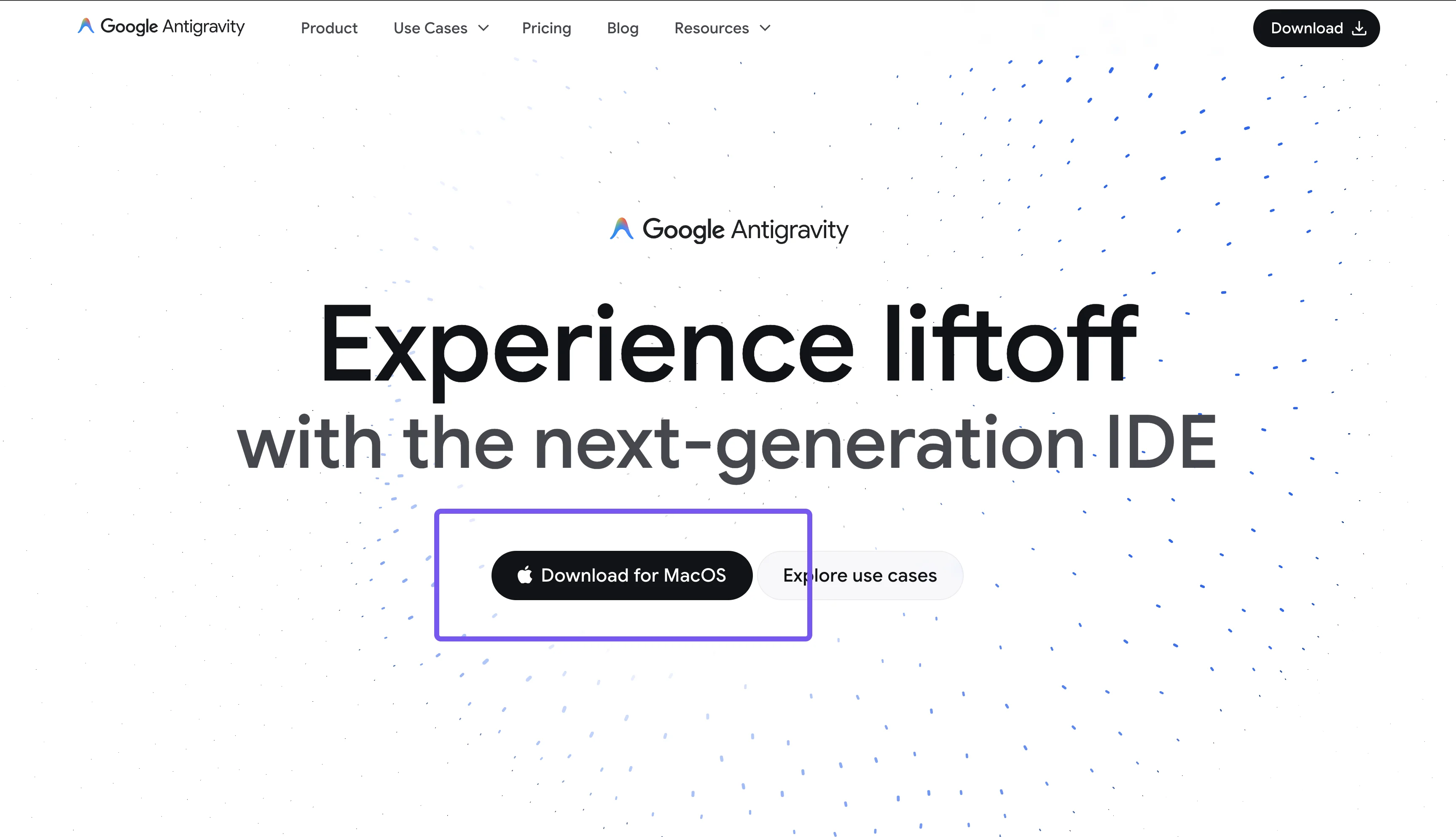
Google Antigravity download page
- Run the installer once it is downloaded.
- When you open the Antigravity IDE for the first time, it will ask you some questions, so answer them one by one and then click on the next button.
- After this, select the Start fresh option and click on Next.
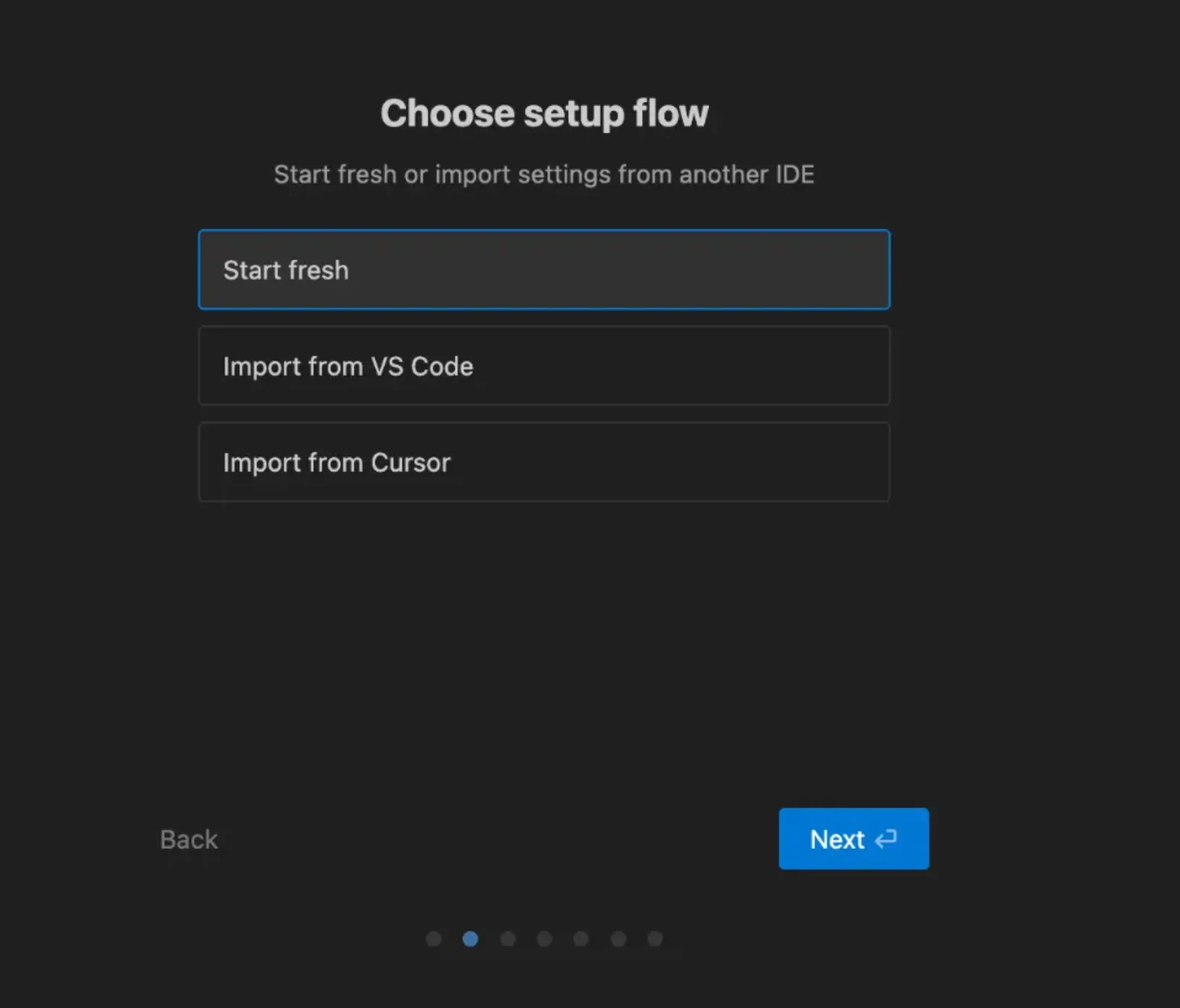
Google antigravity fresh start installation
- Then select the theme you want your IDE to have and click on the Next button.
- Now comes the crucial part of setting up Google Antigravity. You'll see the Agent Manager configuration screen with different development modes on the left. This is basically asking: "Who is driving the car?"
You have three main modes:
- Agent-driven development: "Autopilot." You instruct the AI what to build, and it writes code, creates files, and runs commands automatically.
- Review-driven development: The AI asks permission before performing almost any action.
- Agent-assisted development: Recommended. You stay in control, but the AI helps with safe automations.
On the right side, the Terminal Policy is set to Auto, allowing the AI to run standard commands without prompting you, and Agent Decides lets the agent determine when a confirmation is needed.
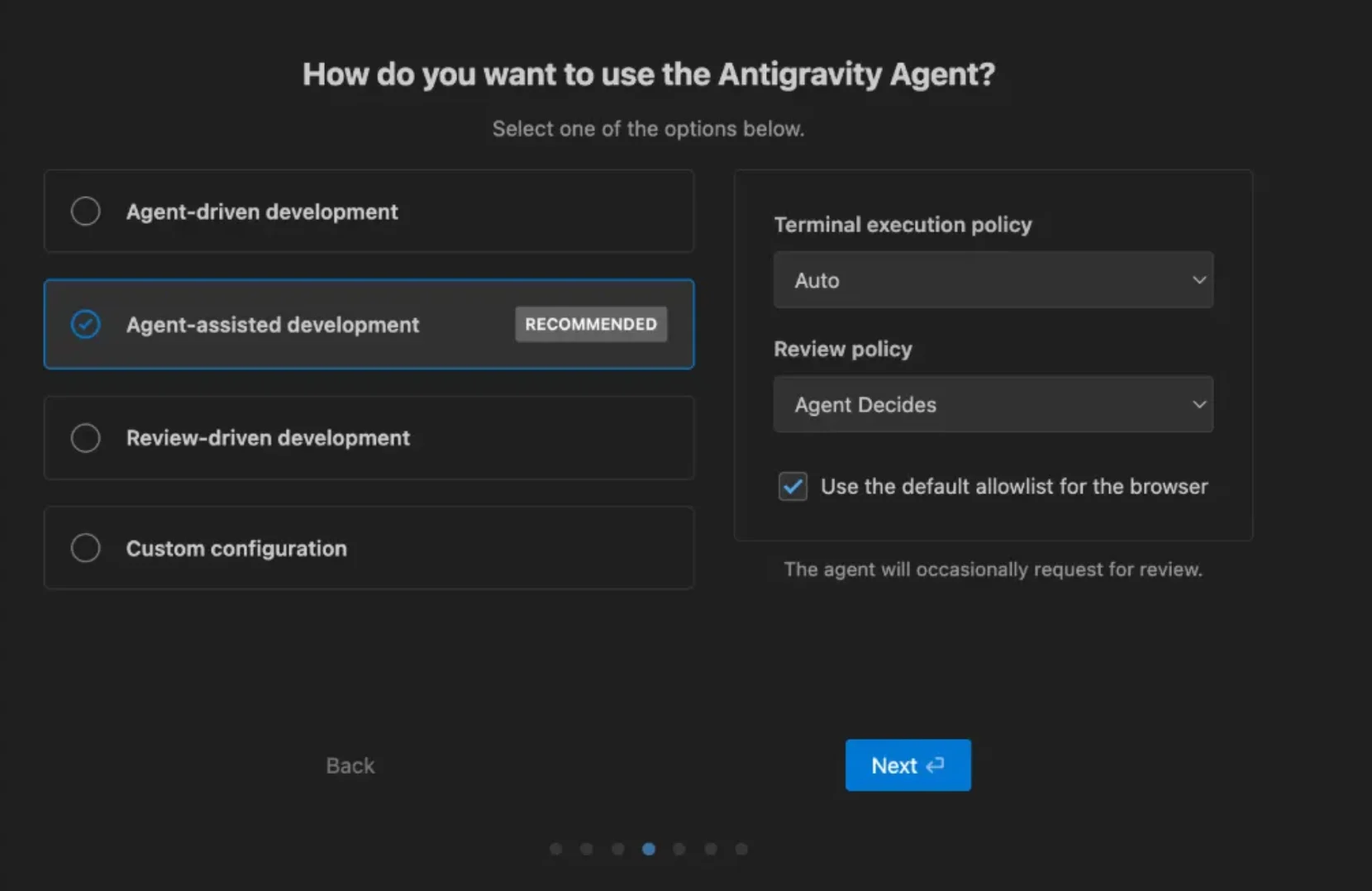
Google antigravity installation screen
- On the next screen, sign in with a Google account.
- Select Gemini 3 Pro as the main model (or choose another if available).
- Import VS Code settings or skip the step if a default setup is preferred.
Getting familiar with the interface of Google Antigravity
The Google Antigravity interface is structured around agent-driven development, similar to AI-powered IDEs like Cursor. However, Antigravity's multi-agent architecture sets it apart. Each section of the IDE plays a specific role:
Editor panel
This is the familiar code-editing space inherited from VS Code. It shows the agent-generated files and allows manual edits.
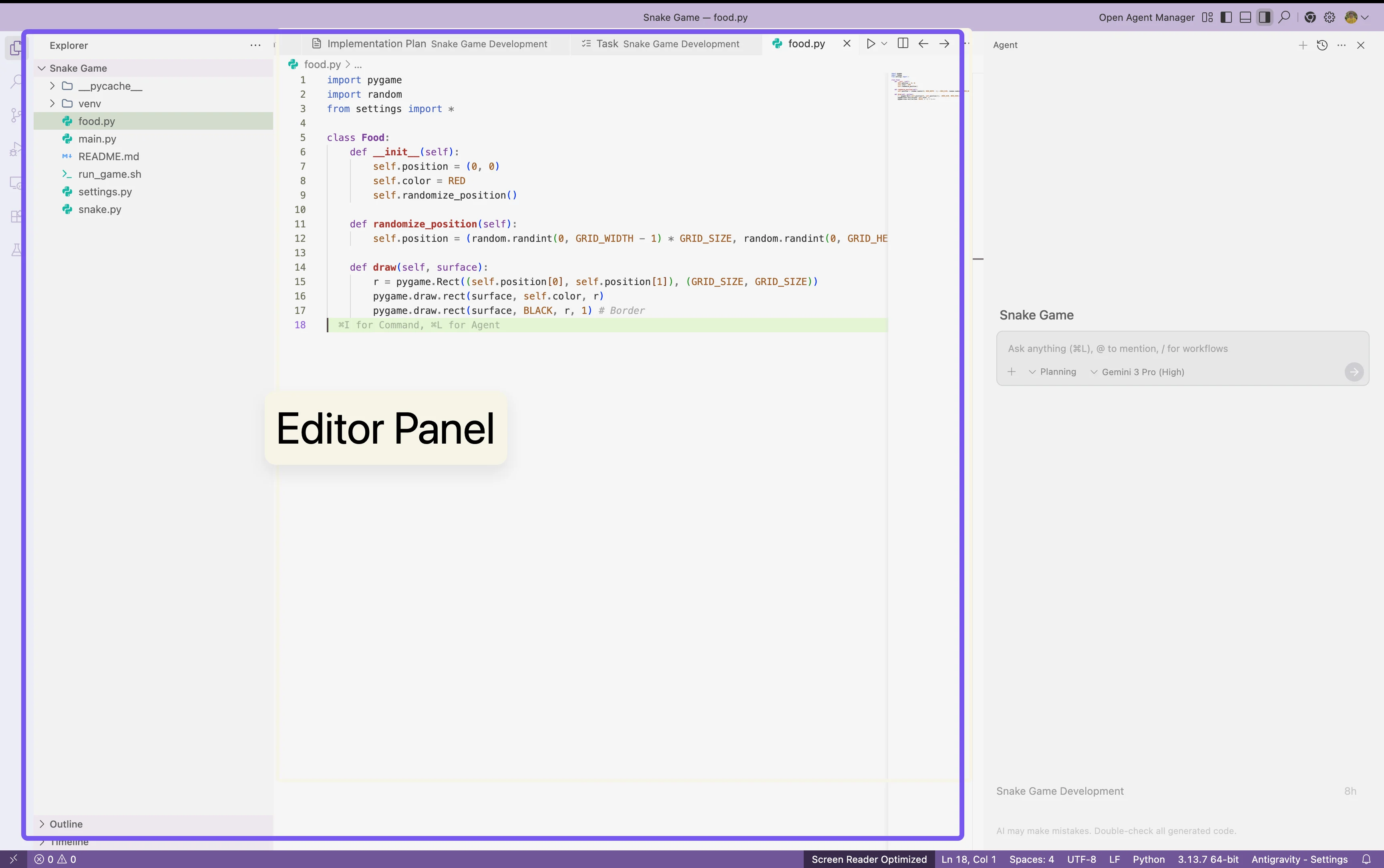
Showing google antigravity editor panel
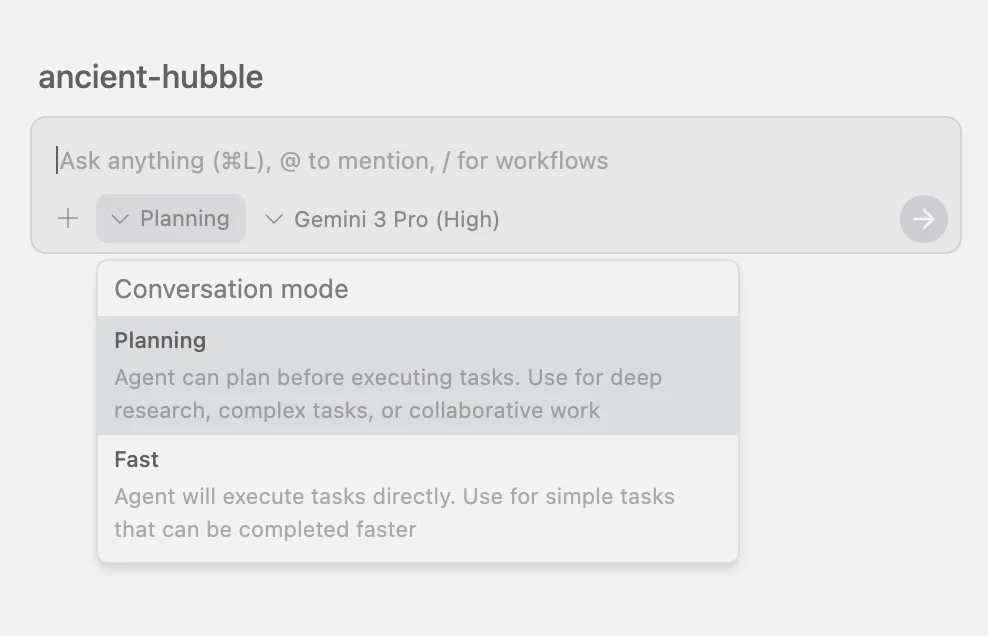
Google artifact agent plan vs fast mode
Plan mode generates a detailed plan (Plan Artifact) before acting, which is ideal for complex tasks.Fast mode executes instructions instantly, which is ideal for quick fixes.
Agent manager
This panel shows active and past agent tasks, including descriptions, plans, progress, and status indicators.
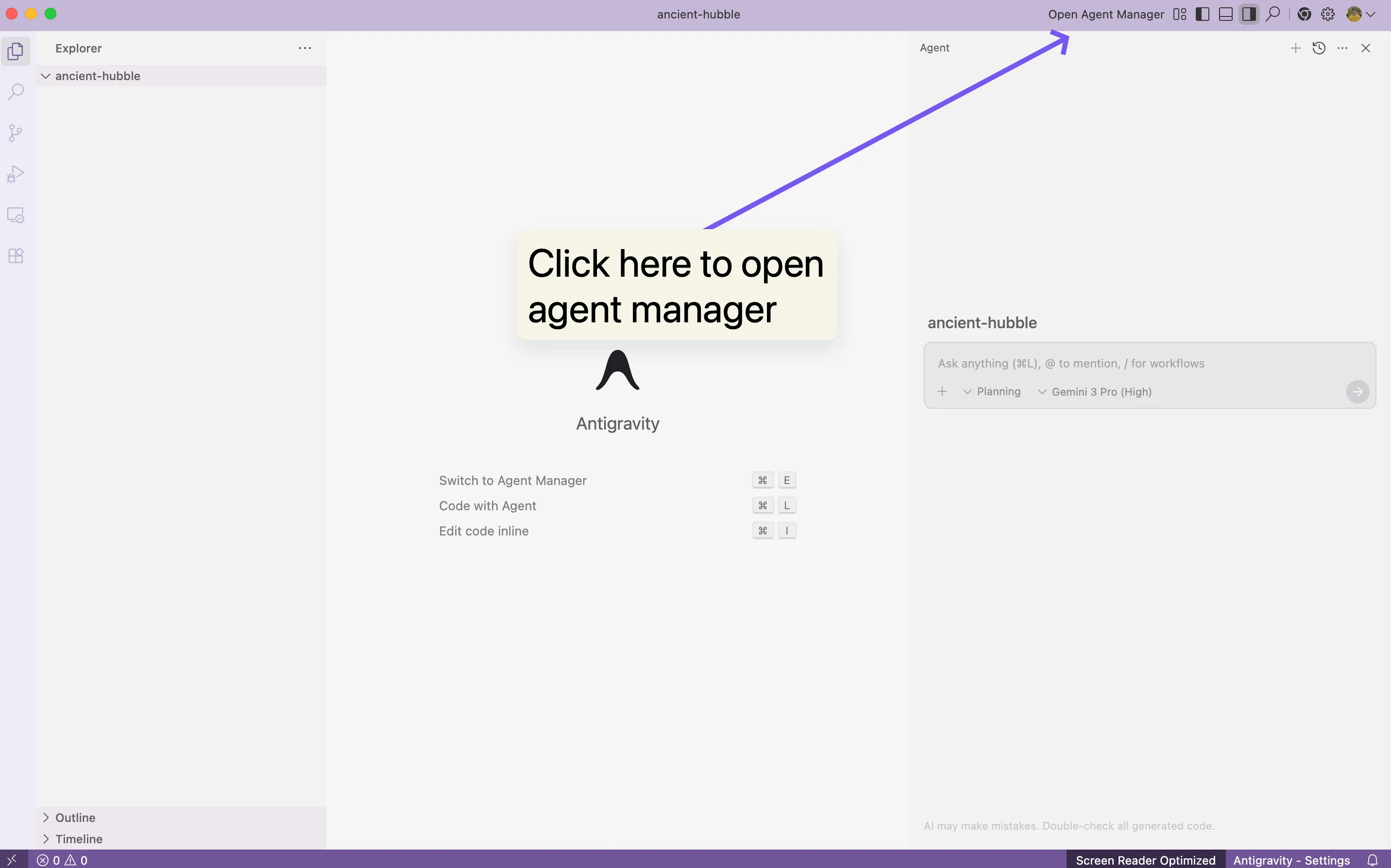
Google antigravity agent manager path
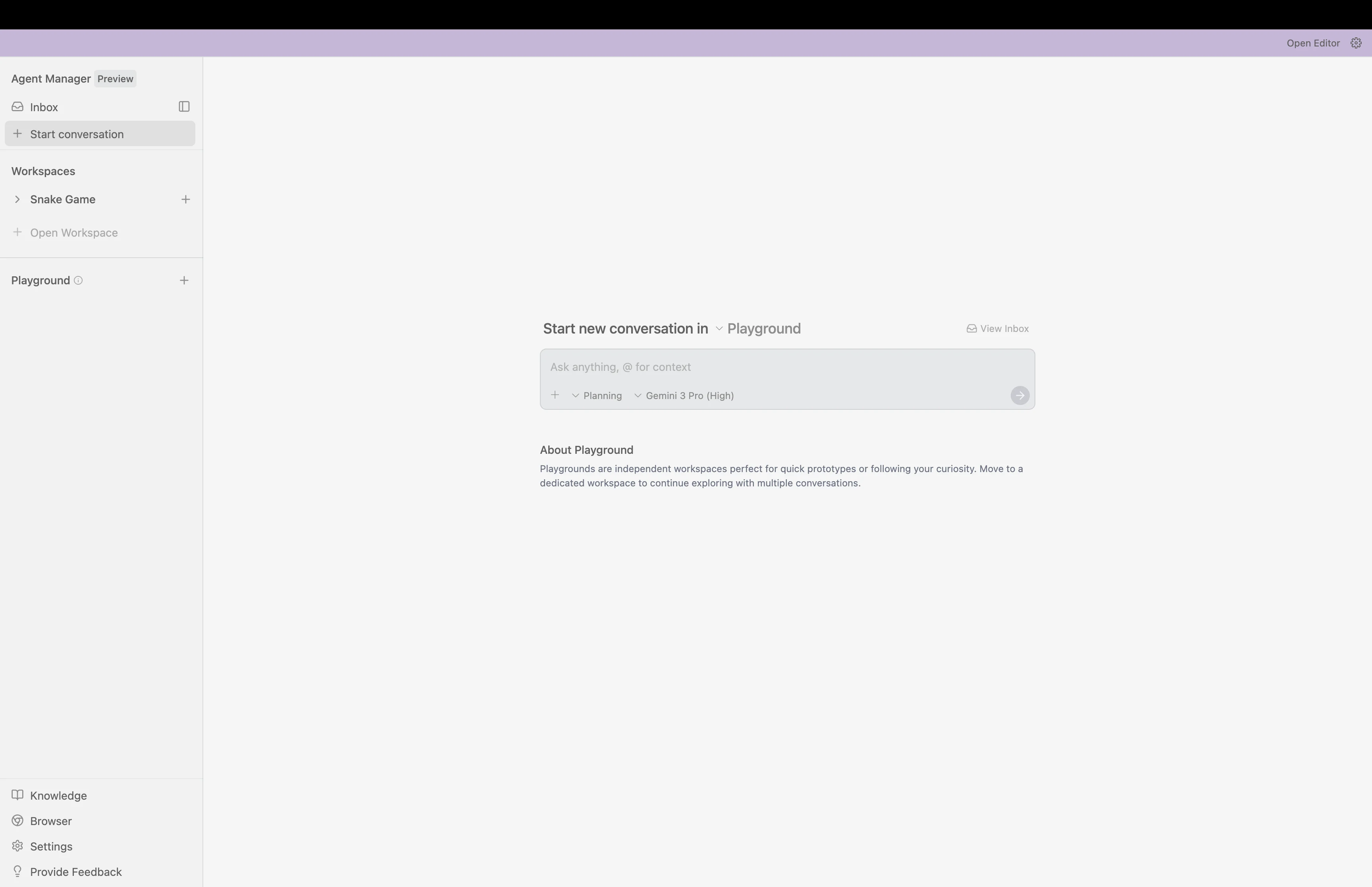
Showing Google antigravity agent manager
Artifacts panel
Stores logs, patches, reasoning steps, and intermediate outputs that the agent produces.
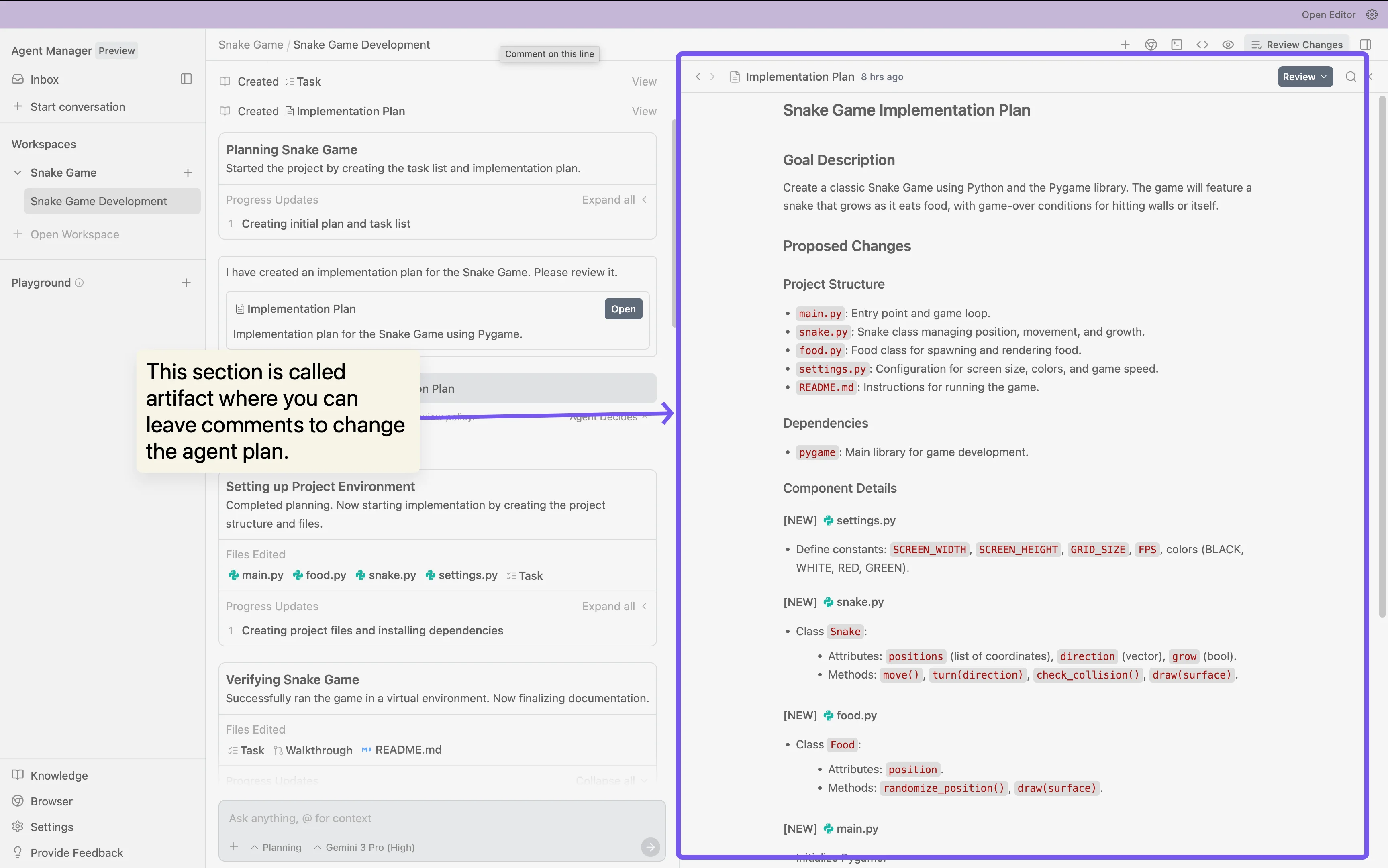
Google antigravity artifact preview
Browser preview
A live app preview that the agent can interact with for automated testing.
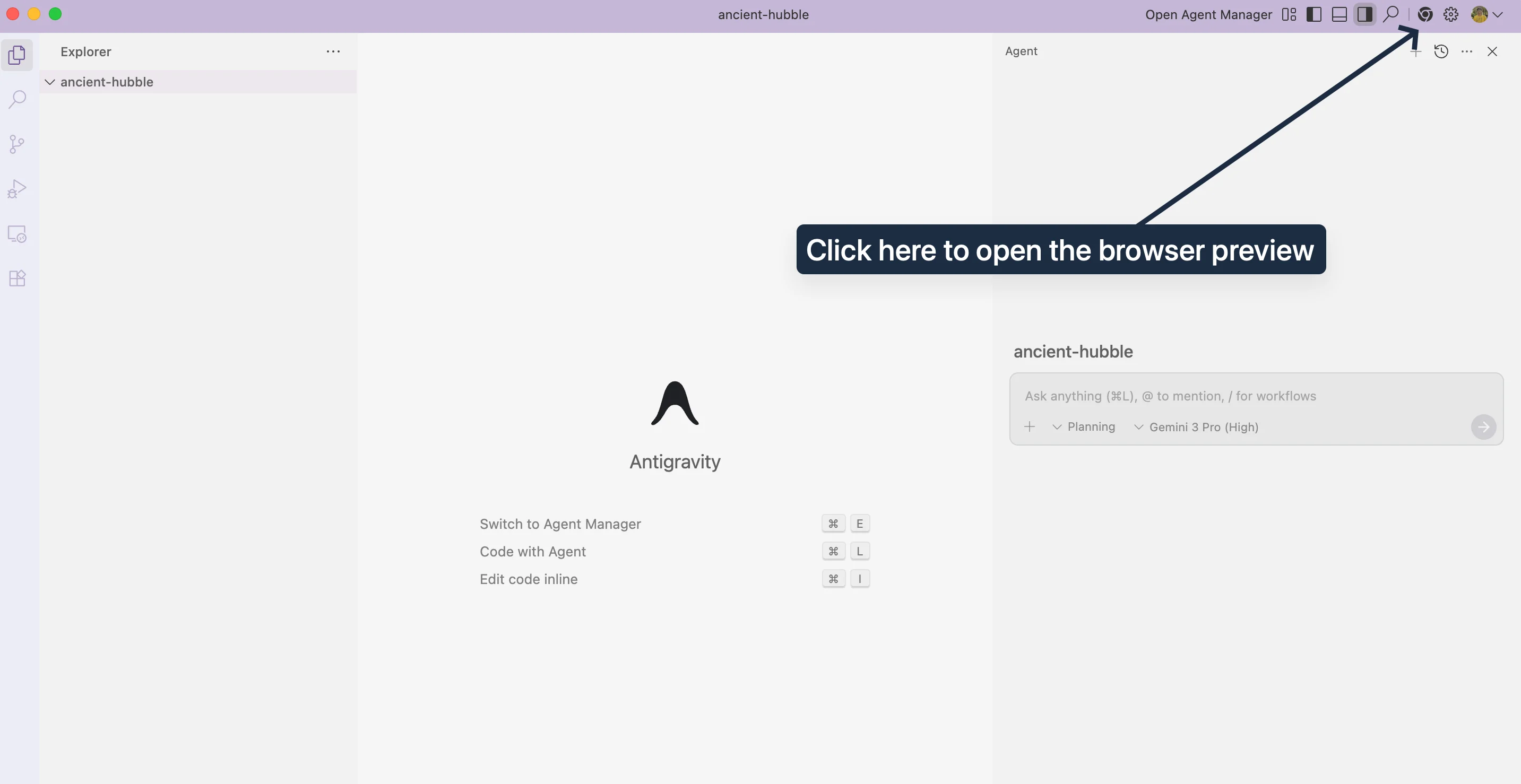
Google antigravity browser preview
Terminal
Can be used manually or by agents for installing packages or running commands.
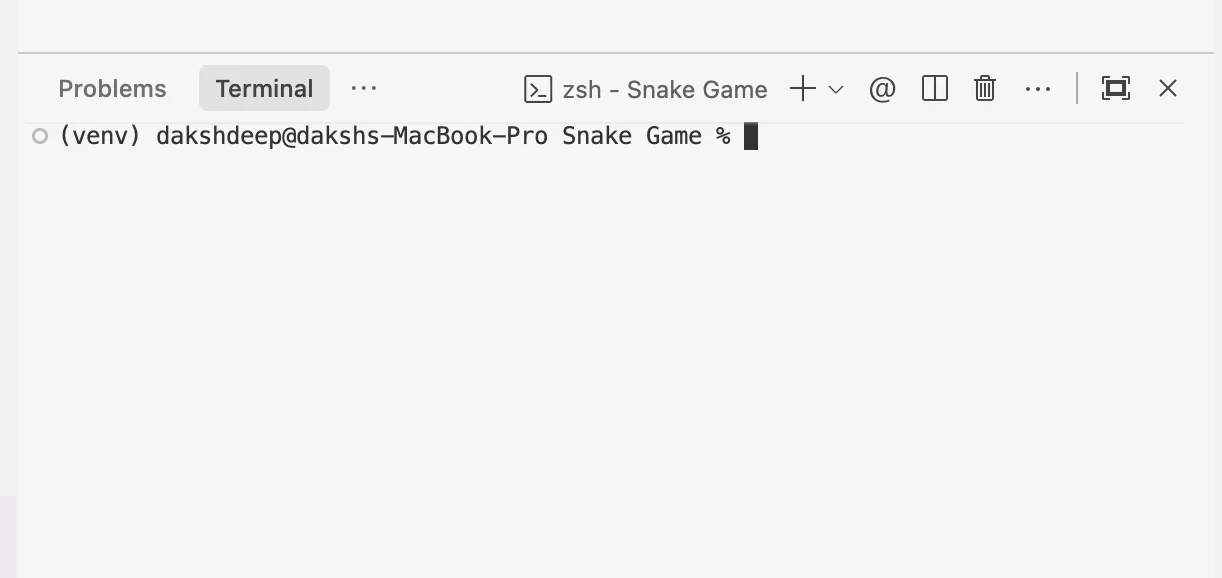
Google antigravity ide terminal
How to use agents to build software in Antigravity
Google Antigravity shifts development from manual editing to high-level task delegation. You describe the task, and the agent handles planning, coding, debugging, and verification.
Traditional workflow vs agent workflow
When the agent workflow helps
Agent-driven development is effective for:
- UI generation from natural-language descriptions
- Multi-file refactoring
- Fixing issues across large codebases
- Scaffolding entire applications
- Creating complex features quickly
Build a snake game in Python using Antigravity agent
This section demonstrates a complete agent-powered development task.
Step 1: Create a new project folder
- Open Google Antigravity.
- Create a new empty project folder.
- Open the folder in the editor.
Step 2: Open the agent manager
- Go to the Agent Manager panel and select the folder we created.
Google antigravity agent manager portal
- Click New Task.
Step 3: Provide the development prompt
Enter a detailed prompt:
Create a fully functional snake game in Python using Pygame.
Include movement controls, food spawning, collision detection, scoring, and a game-over screen.
Test the game in the browser or execution environment and verify it works correctly. Create a `README.md` file with all the instructions on how to run the game.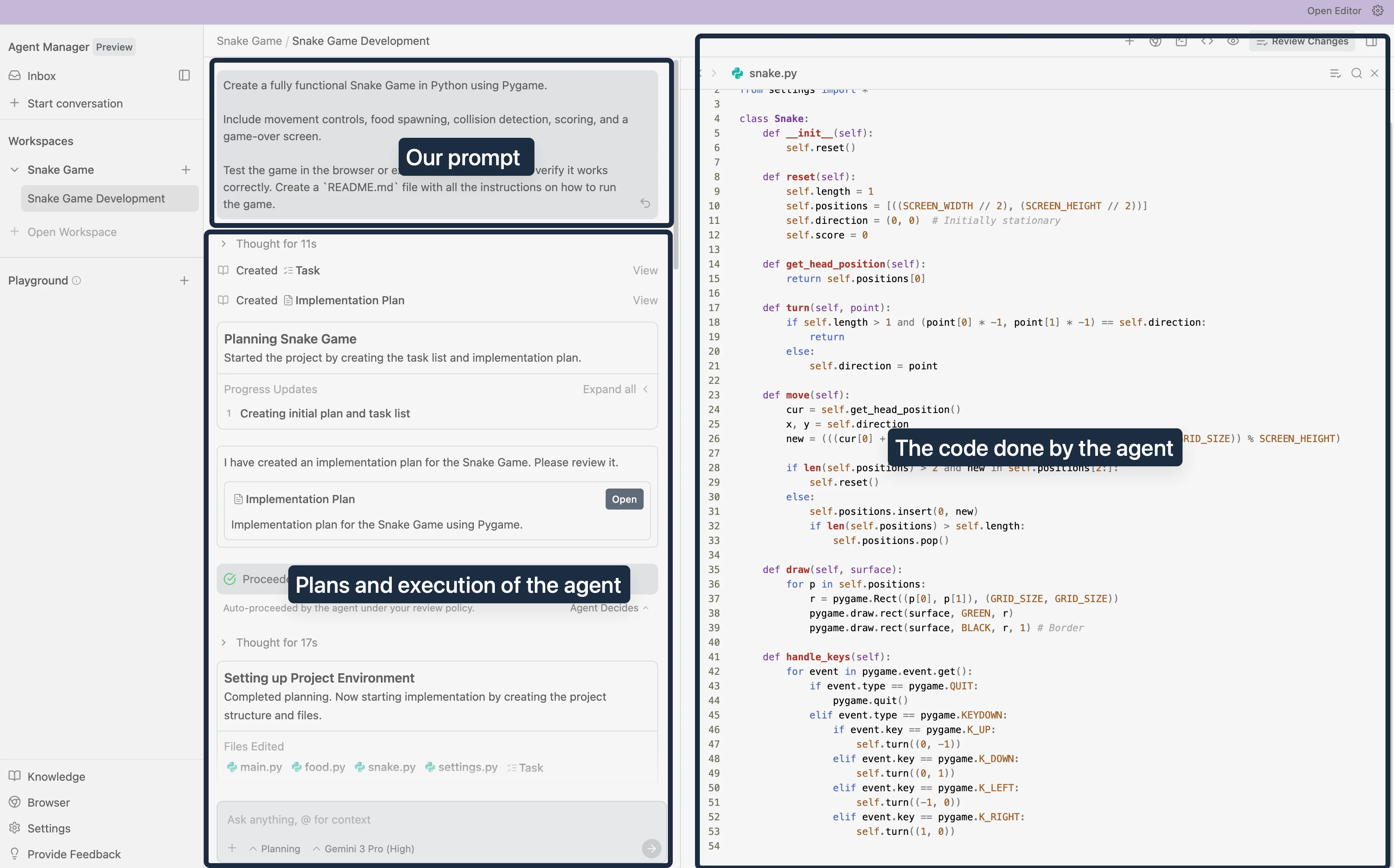
Showcasing the google antigravity agent manager
Step 4: Agent planning and code generation
The agent will:
- Analyze the prompt
- Review the project folder
- Install dependencies
- Create a Python file structure
- Write game logic
- Add scoring/game-over logic
- Generate assets
- Patch files
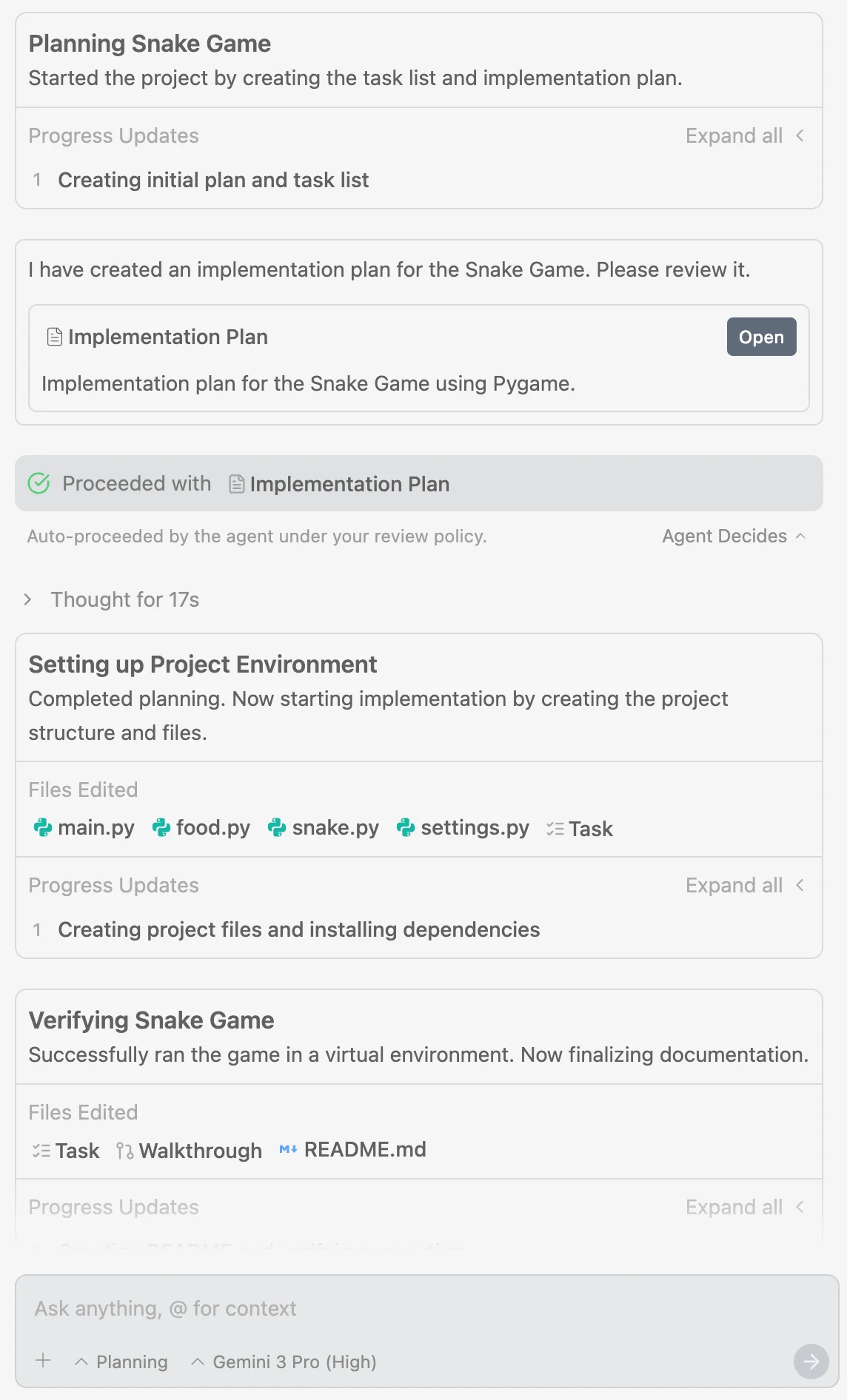
Google antigravity artifact results
Step 5: Automated testing
The agent then:
- Runs the game
- Verifies movement
- Checks food spawning
- Tests collision detection
- Confirms game-over behavior
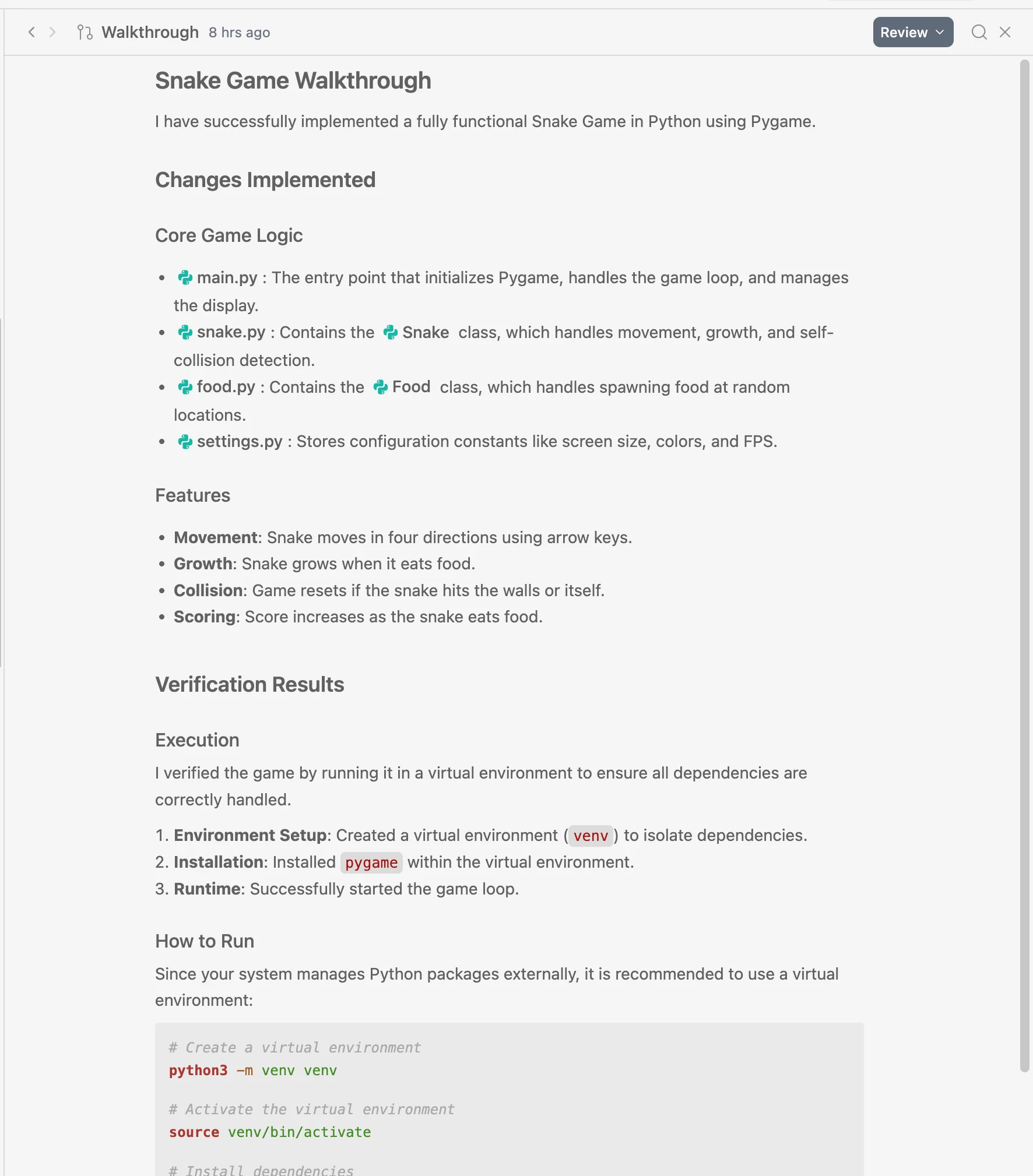
Google antigravity agent game walkthrough and testing
Step 6: Reviewing the final game
The final game is ready to play.
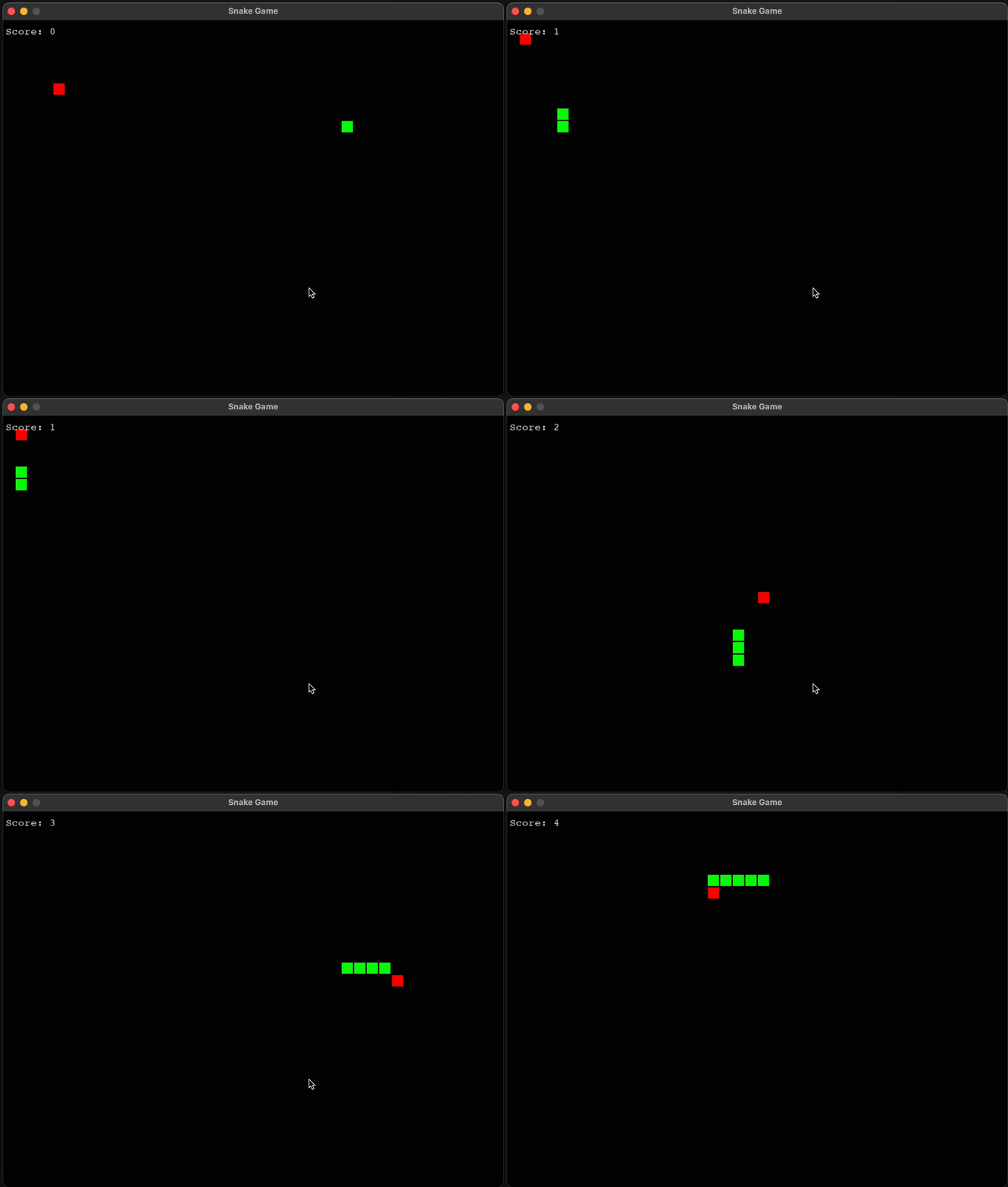
Showcasing the game created by google antigravity agent
Comparing Antigravity vs Cursor
Antigravity is ideal for large-scale automated tasks, while Cursor excels for hands-on developer control.
Best practices for using Google Antigravity
- Write focused, goal-based prompts.
- Create separate folders for different tasks.
- Review agent plans before approving major changes.
- Avoid mixing unrelated tasks in a single prompt.
- Clean up unused files and outdated dependencies regularly.
Conclusion
Google Antigravity introduces a new development style for you, which involves using autonomous agents created by Google. Instead of editing every file manually in traditional IDEs, Google Antigravity's agents handle analysis, planning, code generation, testing, and verification autonomously. In this tutorial, you have learnt how to set up Antigravity, explore its interface, and complete a full development task by generating a Python snake game through natural-language instructions.
As Antigravity evolves, its multi-agent capabilities and Gemini integration will continue shaping the future of AI-assisted development. If you'd like to explore another modern AI-powered IDE, consider our course on Cursor on Intro to AI Coding with Cursor.
Frequently asked questions
1. Is Google Antigravity a vscode fork?
No, it is a new AI-native IDE built by Google for browser-based agent-powered development.
2. Is Google Antigravity free?
Yes, it is free during the preview phase, with generous free Gemini 3 Pro usage.
3. Is Gemini 3 available in Google Antigravity?
Yes, Gemini 3 Pro is the default model.
4. What is Gemini 3 good at?
Gemini 3 Pro excels at autonomous coding, multi-step reasoning, and complex development tasks.
5. Which AI models work with Google Antigravity?
Google Antigravity supports Gemini 3 Pro, Claude Sonnet 4.5, and GPT-4.
'The Codecademy Team, composed of experienced educators and tech experts, is dedicated to making tech skills accessible to all. We empower learners worldwide with expert-reviewed content that develops and enhances the technical skills needed to advance and succeed in their careers.'
- What is Google Antigravity?
- How to install Google Antigravity
- Getting familiar with the interface of Google Antigravity
- How to use agents to build software in Antigravity
- Build a snake game in Python using Antigravity agent
- Comparing Antigravity vs Cursor
- Best practices for using Google Antigravity
- Conclusion
- Frequently asked questions
Complete Payment to Unlock Full Guide & Source Code
You are viewing the 30% preview. Join TopCourseAI Pro to unlock the remaining 70% of this article, unblur all code snippets, and gain full access to all 412 technical projects and guides.
Ready to access the complete step-by-step tutorial?
Gain full unhindered access to all 412 technical projects and guides, unblur all source code snippets, and download runnable scripts.
How to Set Up Your Development Certificate and Profile
Next BlueprintHow to Setup a ChatGPT Account
Related Blueprints & Guides
View all 166 →A Complete Guide to Vercel's AI SDK
Vercel AI SDK is a powerful TypeScript-first toolkit that provides a unified interface for building AI applications with Next.js and other modern frameworks. It eliminates the traditional complexity of managing multiple ...
AI Agents & AutomationAG-UI: How the Agent-User Interaction Protocol Works
AG-UI (Agent-User Interaction Protocol) is an open, lightweight protocol that standardizes the way AI agents interact with frontend apps. Consider it a common language that eliminates the need for custom integration code...
Generative AI FoundationsAI vs Generative AI: Understanding the Difference
Artificial Intelligence, or AI, is everywhere, from chatbots helping you shop to recommendation engines suggesting your next binge. Yet not all AI is the same, and the term is often used loosely, leaving many confused be...
Ready to build production-grade AI systems?
Enjoyed this guide? Continue exploring our library of 166+ production blueprints, multi-agent swarms, and autonomous agent systems with 100% unblurred, executable source code.