
How to Run Llama 3 Locally
How to Run Llama 3 Locally
What is Llama 3?
Llama 3 is a powerful large language model (LLM) that has been gaining popularity among developers for its ability to generate human-like text. With fine-tuning options, context understanding, and improved performance, Llama 3 is revolutionizing the way we interact with language models.
In this article, you will learn how to run Llama 3 locally using GPT4ALL and Ollama.
Let's start the discussion by discovering the benefits of running Llama 3 locally.
Advantages of running Llama 3 locally
Some advantages of running Llama 3 locally include:
- Privacy: Our data remains secure on our device, eliminating concerns about sending sensitive information to external servers.
- Offline Access: We can use Llama 3's capabilities even without an internet connection.
- Lower Latency: We can get faster responses compared to cloud-based solutions due to reduced network delays.
- Customization: We can fine-tune the model for specific tasks or domains to suit our needs.
With its many benefits in mind, let's explore how we can set up Llama 3 locally using popular tools like GPT4ALL and Ollama.
How to use Llama 3 locally
There are several methods we can follow to run Llama 3 locally. Among them, two popular methods are:
- Using GPT4ALL
- Using Ollama
Let's discuss both of these methods individually.
How to run Llama 3 locally using GPT4ALL
GPT4ALL is an open-source framework that allows us to install and run LLM models on desktops and laptops without API calls or GPU requirements. With GPT4ALL, we can quickly install and set up a Llama 3 model and start using it.
To run Llama 3 locally using GPT4ALL, follow the step-by-step instructions.
Step 1: Go to the official downloads page for GPT4ALL and download the utility.
Step 2.1: After downloading, double-click on the setup file to open it and land on the Welcome page. Click on Next to continue.
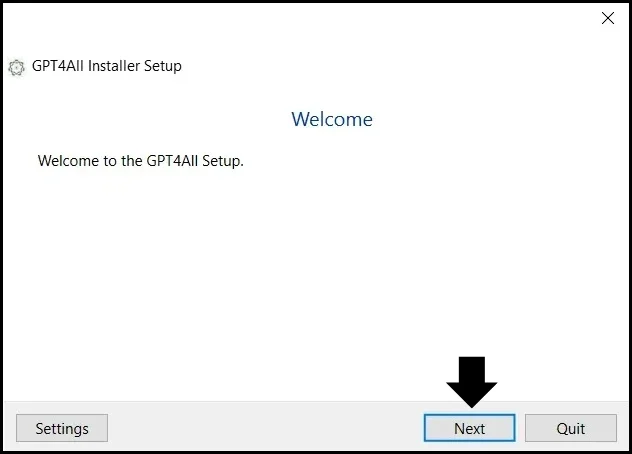
Step 1: Click Next on the welcome page to proceed
Step 2.2: The Select Components page appears. As you can see, the gpt4all component is already selected. Hit Next to go to the next page.
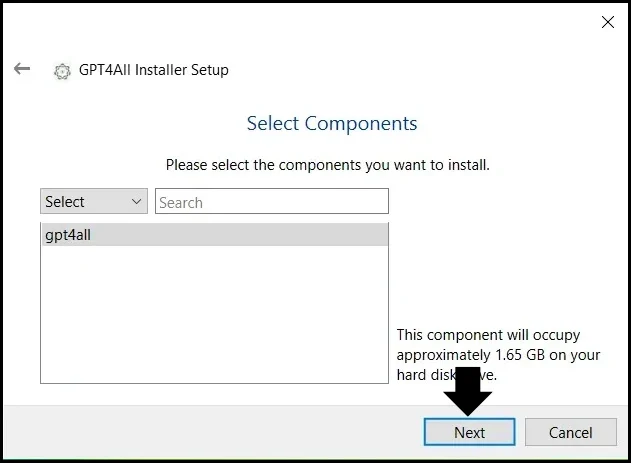
Step 2: Click Next to select chosen components
Step 2.3: Click on the I accept the license checkbox and hit Next to continue.
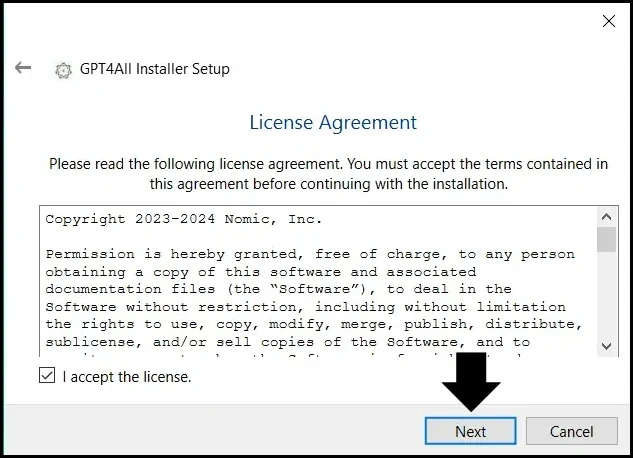
Step 3: Click Next to accept license agreement
Step 2.4: Click on Install to install GPT4ALL on your local machine.
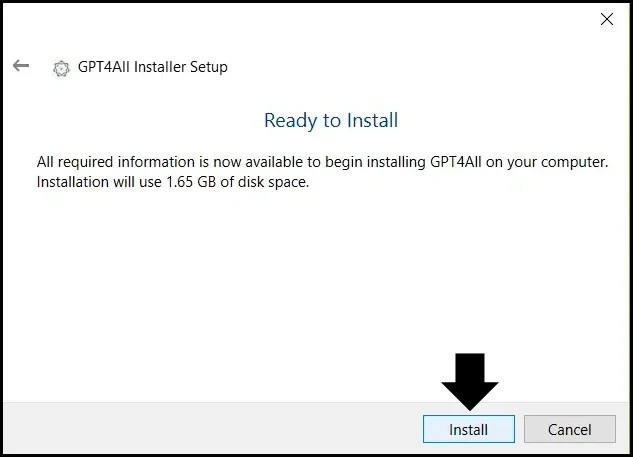
Step 4: Click Install to Install GPT4ALL on your computer
Step 3: Once the installation is done, start the application. On the landing page, click on Find Models to continue.
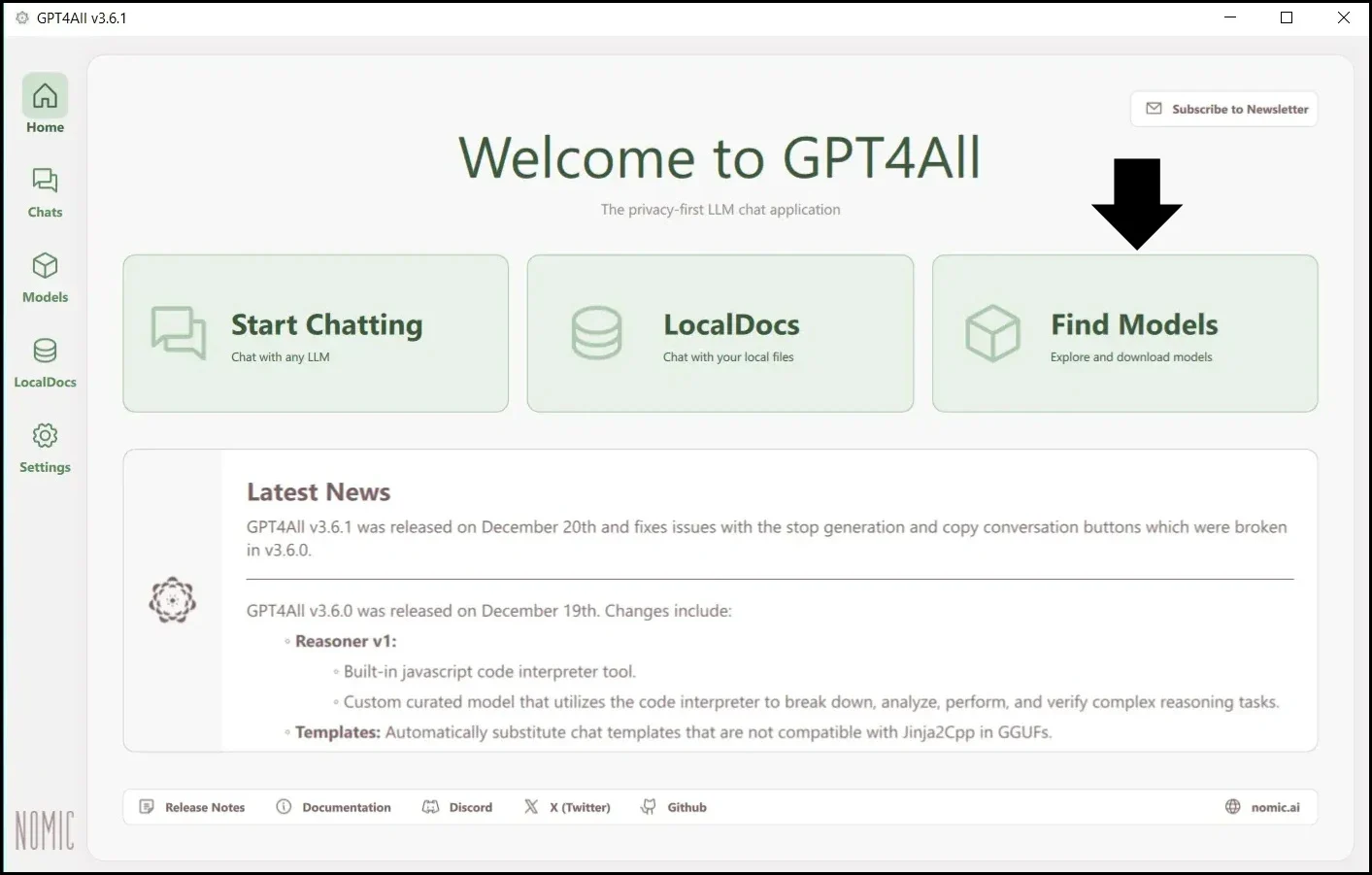
Step 5: Click on Find Models on the GPT4ALL landing page
Step 4: On the Explore Models page, find the Llama 3.2 3B Instruct model and click on Download to download and install the model.

Step 6: Click on Download to download and install the Llama 3.2 3B Instruct model
Step 5: After the model is installed, go to the Chats tab. Then, click on the Choose a model dropdown and select Llama 3.2 3B Instruct to load the model.
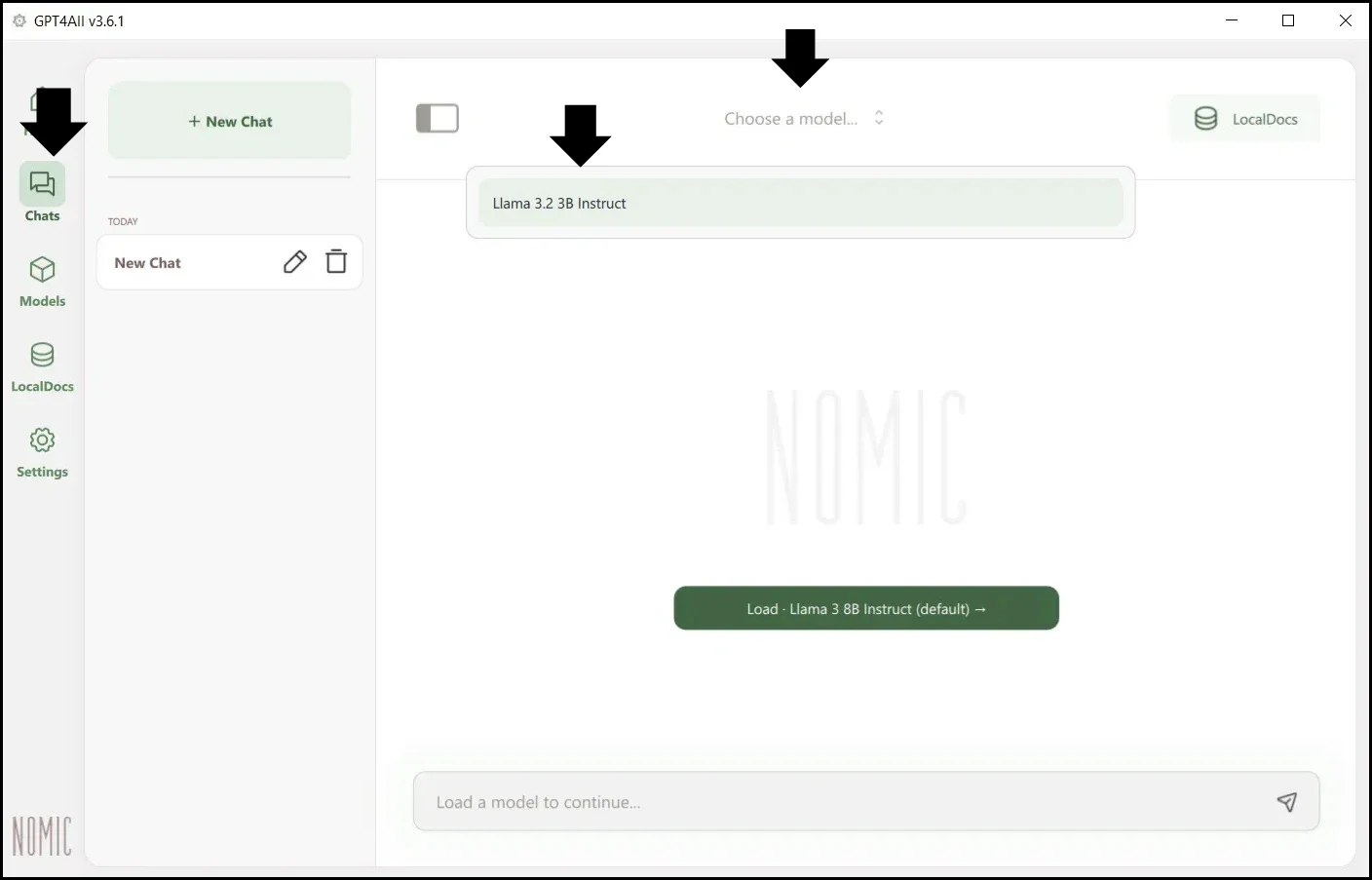
Step 7: Load the Llama 3.2 3B Instruct model
Step 6: Type a prompt in the message box and press Return.
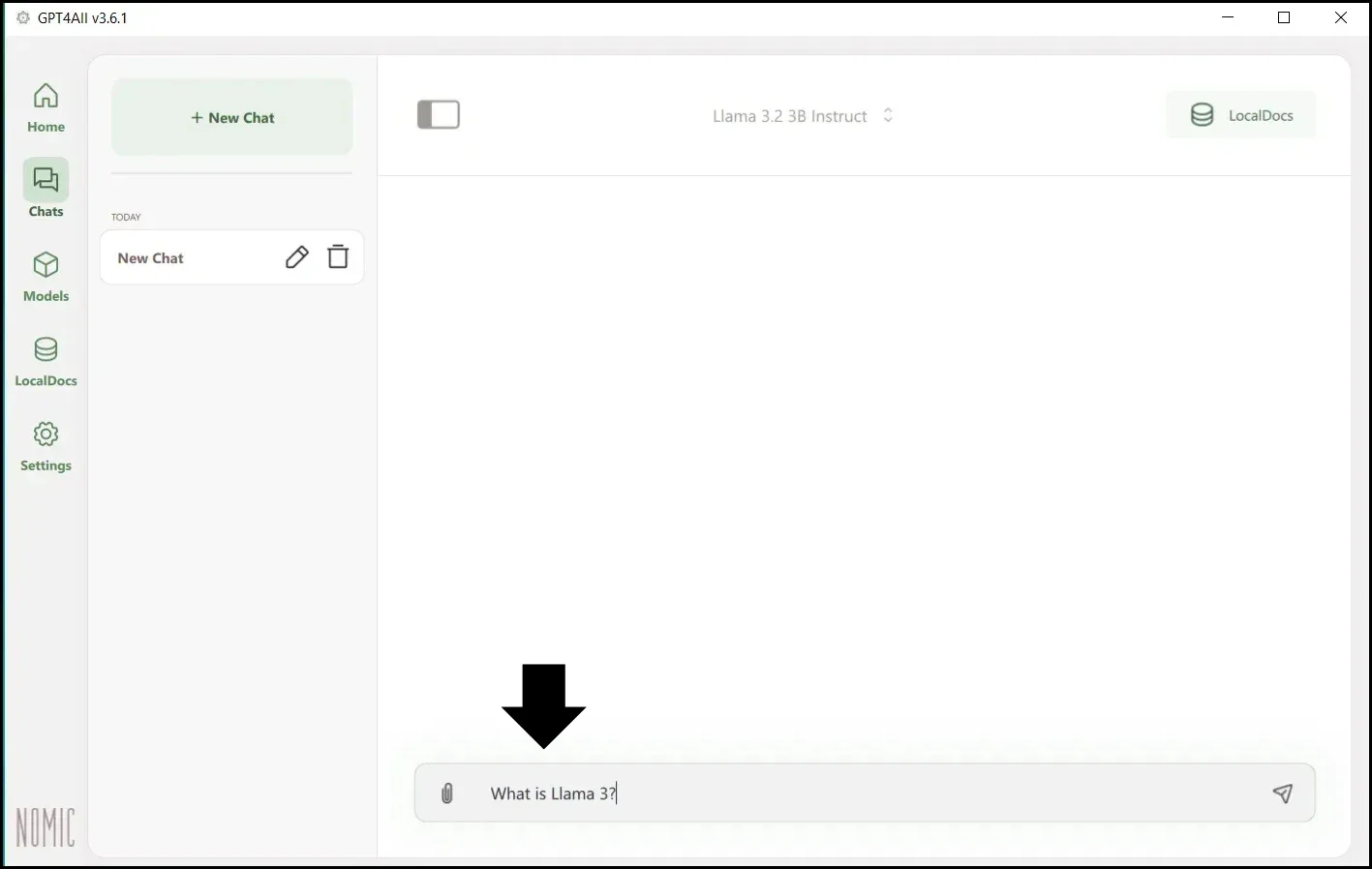
Step 8: Type a prompt in the message box
After pressing Return, Llama 3 generates a response for the prompt in no time:
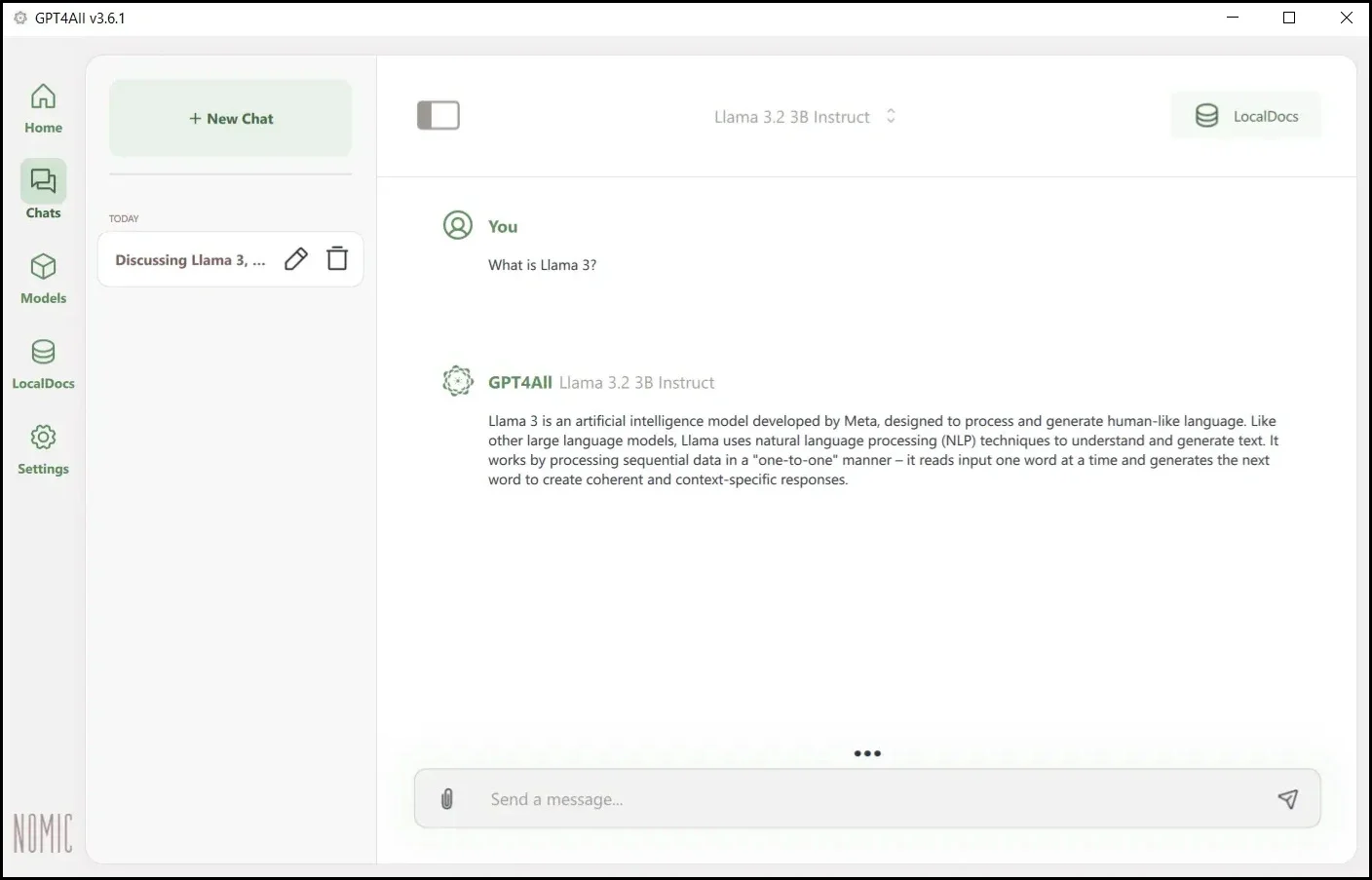
Step 9: Llama 3 generates a response for the prompt
GPT4All allows us to run Llama3 using GUI. If you prefer using a text-based interface like the terminal, you can use Ollama.
How to run Llama 3 locally using Ollama
Ollama is another popular tool that enables us to install and run Llama 3 locally. Using Ollama, we can fine-tune the model to better fit our use cases and requirements. It also provides the flexibility to adjust the parameters of the model and experiment with different settings to optimize performance.
Follow the step-by-step instructions to run Llama 3 locally using Ollama.
Step 1: Go to the official downloads page for Ollama and download the tool.
Step 2: After downloading, double-click on the setup file to launch it and land on the installation screen. Then, click on Install to install Ollama on your local machine.
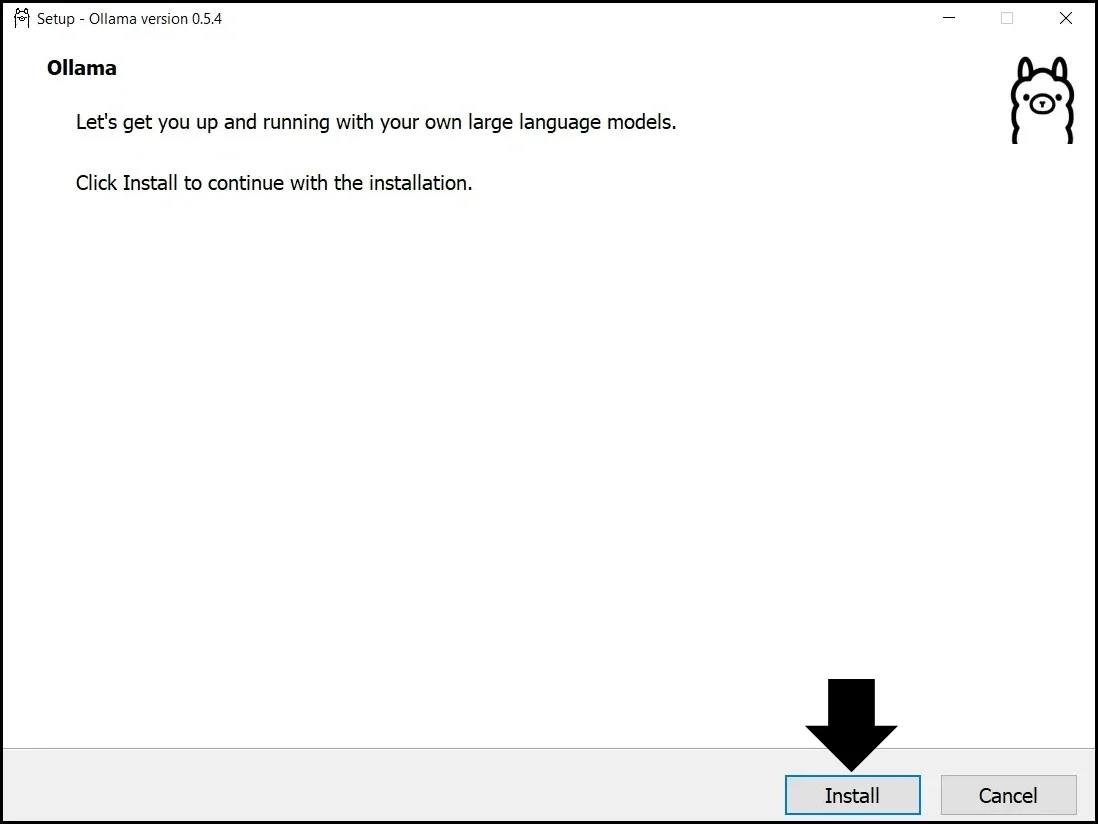
Click on Install to install Ollama on your computer
Once the installation is complete, Ollama will automatically start running on your machine.
Step 3: Open the terminal / PowerShell on your machine and run a command:
ollama run llama3This will first download and install the Llama 3 model on your machine. Then, it will load the model in the terminal / PowerShell, ready to receive prompts and generate responses.
Step 4: After the model is loaded, enter a prompt in the terminal / PowerShell and press Return.
What is Llama 3?Upon hitting Return, Llama 3 generates a super-fast response for the prompt:
Llama 3! It sounds like you might be interested in learning more about this topic. From what I can gather, Llama 3 refers to the third-generation LLaMA model developed by Meta AI. This cutting-edge language model is designed to generate human-like text responses to user input, making it an exciting advancement in natural language processing.Conclusion
In conclusion, running Llama 3 locally offers numerous benefits, including increased privacy, faster performance, and customization options. By following any of the methods discussed, we can easily set up Llama 3 on our local machine and start leveraging its powerful capabilities.
If you want to learn more about LLMs, check out the Intro to Large Language Models (LLMs) course on Codecademy.
'The Codecademy Team, composed of experienced educators and tech experts, is dedicated to making tech skills accessible to all. We empower learners worldwide with expert-reviewed content that develops and enhances the technical skills needed to advance and succeed in their careers.'
- What is Llama 3?
- Advantages of running Llama 3 locally
- How to use Llama 3 locally
- How to run Llama 3 locally using GPT4ALL
- How to run Llama 3 locally using Ollama
- Conclusion
Complete Payment to Unlock Full Guide & Source Code
You are viewing the 30% preview. Join TopCourseAI Pro to unlock the remaining 70% of this article, unblur all code snippets, and gain full access to all 412 technical projects and guides.
Ready to access the complete step-by-step tutorial?
Gain full unhindered access to all 412 technical projects and guides, unblur all source code snippets, and download runnable scripts.
How to Run Deepseek R1 Locally
Next BlueprintHow to Run and Use OpenAI's GPT-OSS Locally
Related Blueprints & Guides
View all 166 →A Complete Guide to Vercel's AI SDK
Vercel AI SDK is a powerful TypeScript-first toolkit that provides a unified interface for building AI applications with Next.js and other modern frameworks. It eliminates the traditional complexity of managing multiple ...
AI Agents & AutomationAG-UI: How the Agent-User Interaction Protocol Works
AG-UI (Agent-User Interaction Protocol) is an open, lightweight protocol that standardizes the way AI agents interact with frontend apps. Consider it a common language that eliminates the need for custom integration code...
Generative AI FoundationsAI vs Generative AI: Understanding the Difference
Artificial Intelligence, or AI, is everywhere, from chatbots helping you shop to recommendation engines suggesting your next binge. Yet not all AI is the same, and the term is often used loosely, leaving many confused be...
Ready to build production-grade AI systems?
Enjoyed this guide? Continue exploring our library of 166+ production blueprints, multi-agent swarms, and autonomous agent systems with 100% unblurred, executable source code.