
How to Run Deepseek R1 Locally
How to Run Deepseek R1 Locally
What is Deepseek R1?
Deepseek R1 is an open-source large language model (LLM) built for tasks like conversational AI, code generation, and natural language understanding. It can be used for:
- Text generation - It can be used to write articles, summaries, and more.
- Code assistance - It can generate and debug code.
- Natural language understanding - It helps to analyze and interpret human input.
- Question-answering - It helps to provide context-based responses.
Text generation - It can be used to write articles, summaries, and more.
Code assistance - It can generate and debug code.
Natural language understanding - It helps to analyze and interpret human input.
Question-answering - It helps to provide context-based responses.
By running Deepseek R1 locally, you eliminate dependency on cloud services and gain full control over your workflow.
Now, let's explore how to set up Deepseek R1 on your machine using Ollama.
How to set up Deepseek R1 locally using Ollama
Before we begin with the installation process, let's first understand what Ollama is and why it is the preferred choice for running Deepseek R1 locally.
What is Ollama?
Ollama is a lightweight tool designed to simplify the process of running AI models locally. It offers:
- Quick setup - It requires minimal installation steps. You can have your AI model up and running in no time.
- Optimized resource usage - It efficiently manages memory, ensuring smooth performance.
- Local inference - No internet connection is needed after setup.
Quick setup - It requires minimal installation steps. You can have your AI model up and running in no time.
Optimized resource usage - It efficiently manages memory, ensuring smooth performance.
Local inference - No internet connection is needed after setup.
Now that we understand what Ollama is, let's explore why it's beneficial to use it to run Deepseek R1.
Why use Ollama?
Running Deepseek R1 with Ollama provides several advantages:
- Privacy - Your data stays on your device.
- Performance - Faster response times without cloud delays.
- Customization - Ability to tweak model behavior for specific tasks.
Privacy - Your data stays on your device.
Performance - Faster response times without cloud delays.
Customization - Ability to tweak model behavior for specific tasks.
With these benefits in mind, let's move on to the installation process.
How to install Ollama
Follow these steps to install Ollama on your system:
- Open Terminal and run: brew install ollama
- If Homebrew isn't installed, visit brew.sh and follow the setup instructions.
Open Terminal and run:
brew install ollamaIf Homebrew isn't installed, visit brew.sh and follow the setup instructions.
- Download Ollama from the official website.
- Follow the installation guide for your operating system.
Download Ollama from the official website.
Follow the installation guide for your operating system.
Alternatively, Linux users can install it via Terminal:
curl -fsSL https://ollama.com/install.sh | shWith Ollama successfully installed, let's move on to using Deepseek R1 on your local machine.
Running Deepseek R1 on Ollama
Once Ollama is installed, follow these steps to set up Deepseek R1 locally:
Step 1: Download the Deepseek R1 model
To begin using Deepseek R1, you first need to download the model. Run the following command in the terminal to download Deepseek R1:
ollama pull deepseek-r1For a smaller version, specify the model size:
ollama pull deepseek-r1:1.5b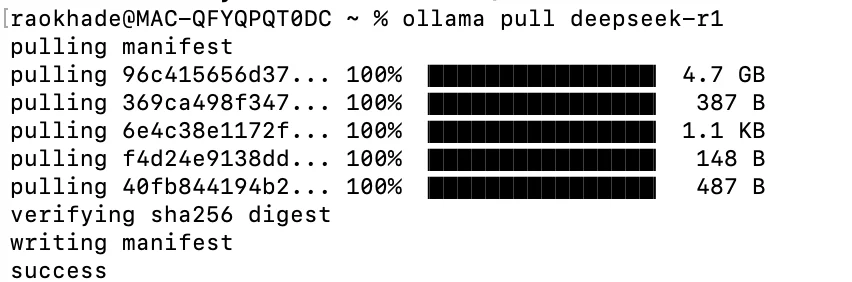
Download the Deepseek R1 model
After downloading the model, you're ready to start using it.
Step 2: Start the model
Now that you have the model downloaded, you need to start the Ollama server to run Deepseek R1. Use the following command:
ollama serveThen, run DeepseekR1:
ollama run deepseek-r1To use a specific version:
ollama run deepseek-r1:1.5bStep 3: Interact with Deepseek R1
With the model running, you can now interact with it in the terminal. Try entering queries like the following:
ollama run deepseek-r1 "What is a class in C++?."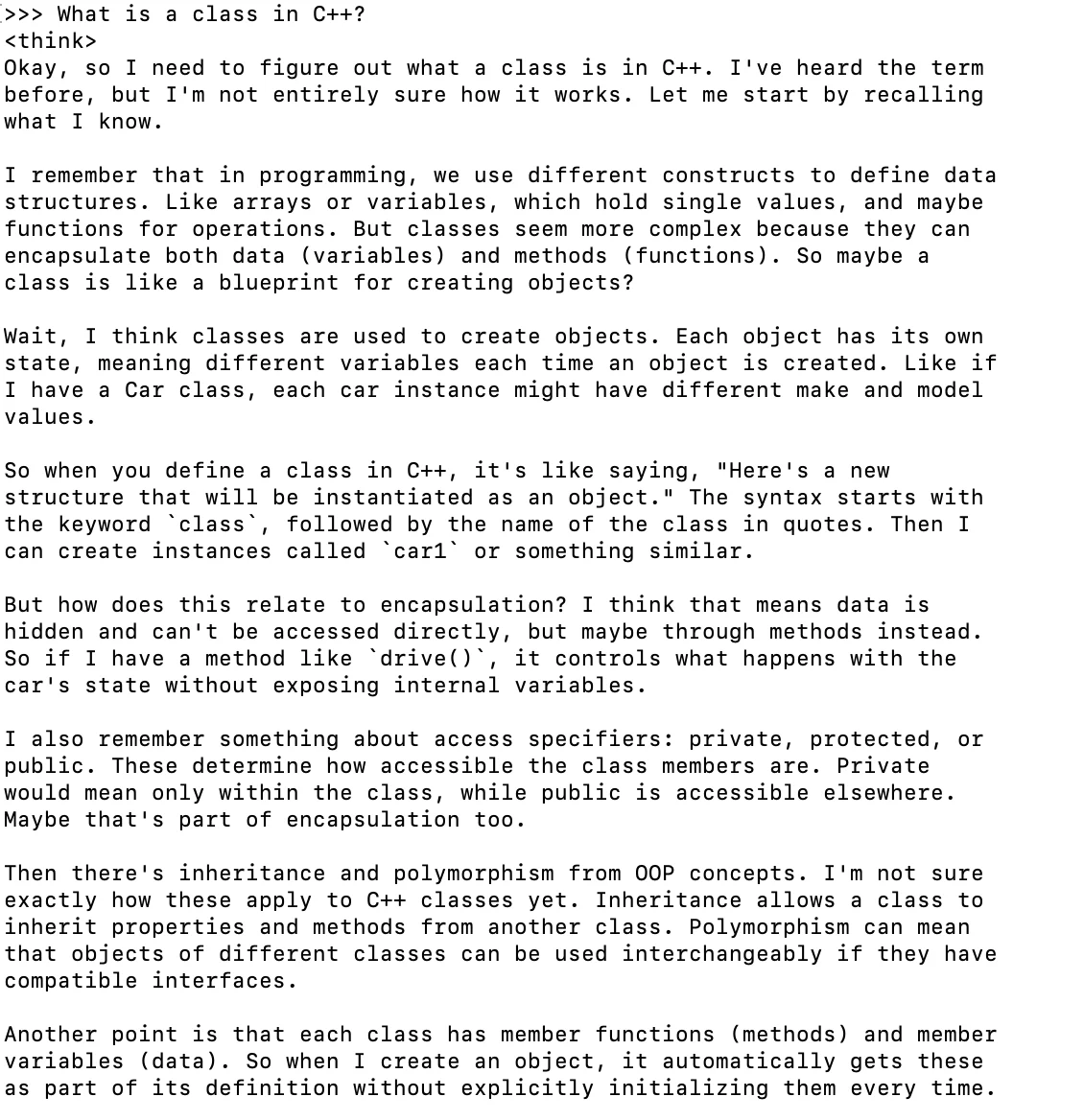
Interact with Deepseek R1
Try experimenting with different prompts. It will help you understand the model's strengths and how it can best serve your needs.
Conclusion
Running Deepseek R1 locally using Ollama offers a powerful and private AI solution. By following this guide, you can install, configure, and interact with Deepseek R1 seamlessly on your local machine. Whether for text generation, coding, or knowledge retrieval, Deepseek R1 provides an efficient AI experience without relying on cloud-based services.
If you want to deepen your understanding of AI models and their applications, check out Codecademy's Generative AI for Everyone course to expand your knowledge and enhance your AI development skills.
'The Codecademy Team, composed of experienced educators and tech experts, is dedicated to making tech skills accessible to all. We empower learners worldwide with expert-reviewed content that develops and enhances the technical skills needed to advance and succeed in their careers.'
- What is Deepseek R1?
- How to set up Deepseek R1 locally using Ollama
- Running Deepseek R1 on Ollama
- Conclusion
Complete Payment to Unlock Full Guide & Source Code
You are viewing the 30% preview. Join TopCourseAI Pro to unlock the remaining 70% of this article, unblur all code snippets, and gain full access to all 412 technical projects and guides.
Ready to access the complete step-by-step tutorial?
Gain full unhindered access to all 412 technical projects and guides, unblur all source code snippets, and download runnable scripts.
How to Revert to Previous Commits Using Git Reset and Revert
Next BlueprintHow to Run Llama 3 Locally
Related Blueprints & Guides
View all 166 →A Complete Guide to Vercel's AI SDK
Vercel AI SDK is a powerful TypeScript-first toolkit that provides a unified interface for building AI applications with Next.js and other modern frameworks. It eliminates the traditional complexity of managing multiple ...
AI Agents & AutomationAG-UI: How the Agent-User Interaction Protocol Works
AG-UI (Agent-User Interaction Protocol) is an open, lightweight protocol that standardizes the way AI agents interact with frontend apps. Consider it a common language that eliminates the need for custom integration code...
Generative AI FoundationsAI vs Generative AI: Understanding the Difference
Artificial Intelligence, or AI, is everywhere, from chatbots helping you shop to recommendation engines suggesting your next binge. Yet not all AI is the same, and the term is often used loosely, leaving many confused be...
Ready to build production-grade AI systems?
Enjoyed this guide? Continue exploring our library of 166+ production blueprints, multi-agent swarms, and autonomous agent systems with 100% unblurred, executable source code.