
How to Delete a Git Branch Locally and Remotely
How to Delete a Git Branch Locally and Remotely
Introduction to Git Branches
Gitis a powerful version control system that enables developers to track changes in their codebase efficiently. Git branches are separate lines of development that diverge from the main codebase, enabling developers to work on features or fixes without affecting the main codebase.
There are two types of branches in Git: local branches and remote branches. Local branches only exist on our local machine, whereas remote branches exist on aremote repositoryhosted on a Git hosting platform, such asGitHub, GitLab, or Bitbucket.
Sometimes, we may no longer need certain branches in a repository. Deleting these branches can help keep the repository organized and uncluttered. Think of deleting a branch, like cleaning up old documents from your desk. It keeps things organized and makes it easier to focus on what’s important.
In this article, we’ll discuss how to delete a branch in Git, covering both local and remote branch deletion. Whether you need to delete locally or remove branches from your remote repository, we’ll guide you through each step.
Let’s first look at the process of deleting a branch locally in Git.
How to Delete a Branch Locally in Git
When we need to delete a Git branch locally, we have several options available. The most common commands for Git branch deletion aregit branch -dandgit branch -D. Let’s explore how to use these commands effectively.
To delete a local branch in Git, we use thegit branch -dcommand. This command deletes the specified branch on our local machine. Here’s the syntax for it:
git branch -d <branch_name>Here,branch-nameis the name of the branch that we want to delete.
Since the-dflag is the shortened form of the--deleteflag, the syntax can be alternatively written as:
git branch --delete <branch_name>One thing to note is that thegit branch -dcommand prevents us from deleting a local branch if it has unmerged changes, i.e., commits that don’t exist on the default branch (main,master, etc.).
If we want to force delete a local branch in Git, regardless of whether it has unmerged changes or not, we can use thegit branch -Dcommand. Since this command removes the branch completely, we must ensure that we no longer need the branch before performing the operation:
git branch -D <branch_name>Now, follow the steps mentioned to understand how to delete a local branch using thegit branch -dcommand.
Firstly, fork or make a personal copy of thedocsrepository:
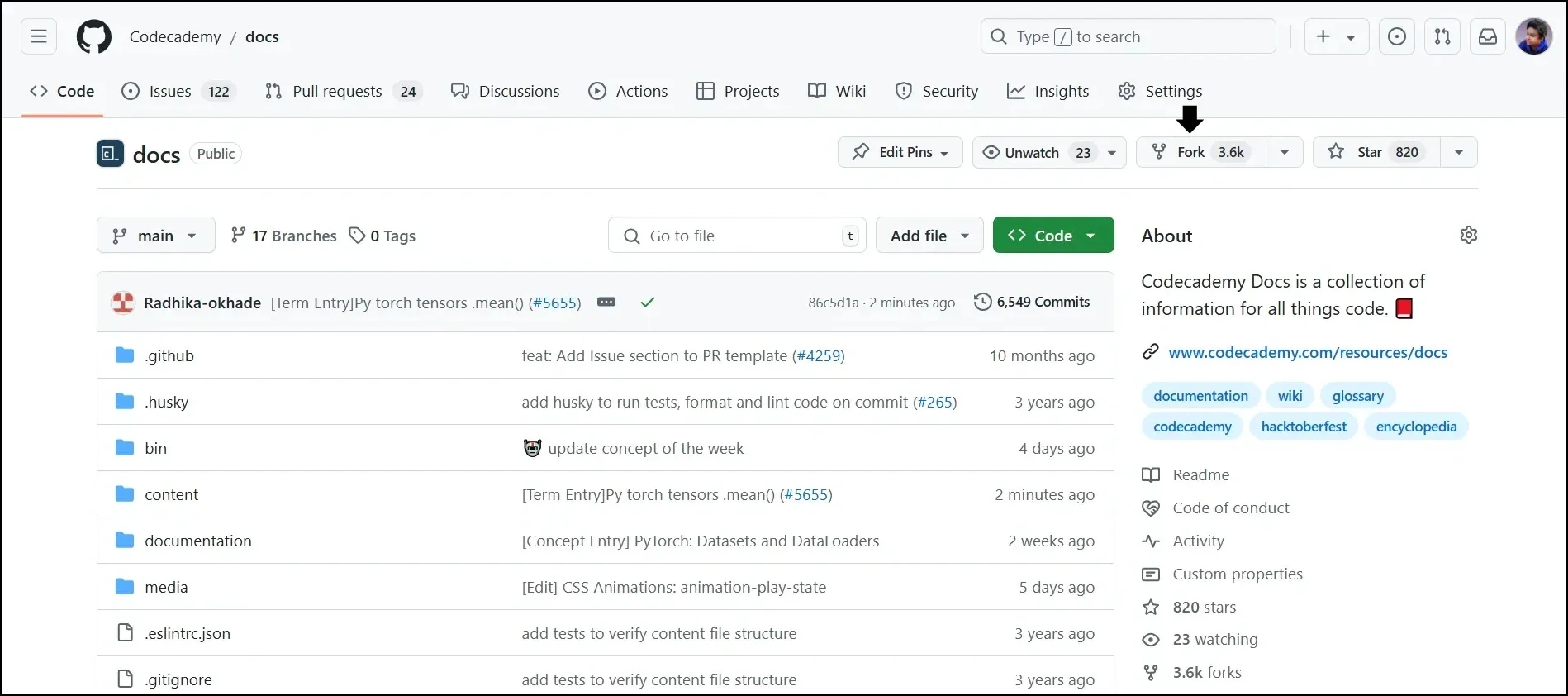
Fork the 'docs' repository
Ensure that you uncheck theCopy the main branch onlyoption to include all the remote branches from the repository, not just themain(default) branch in the forked repository. Unchecking this option ensures all remote branches are available in the forked repository to demonstrate remote branch deletion in Git:
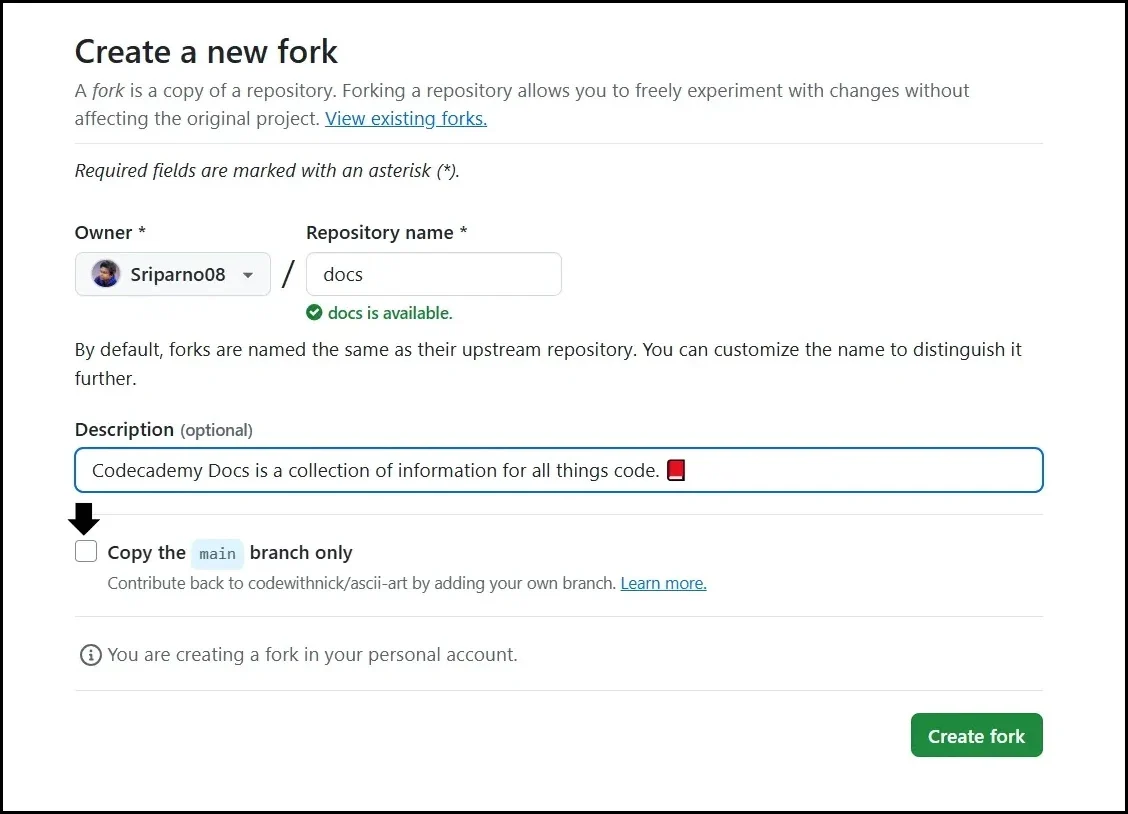
Copy all the remote branches from the 'docs' repository
Then, go to the forkeddocsrepository, click on theCodedropdown, and copy the link to the repository:
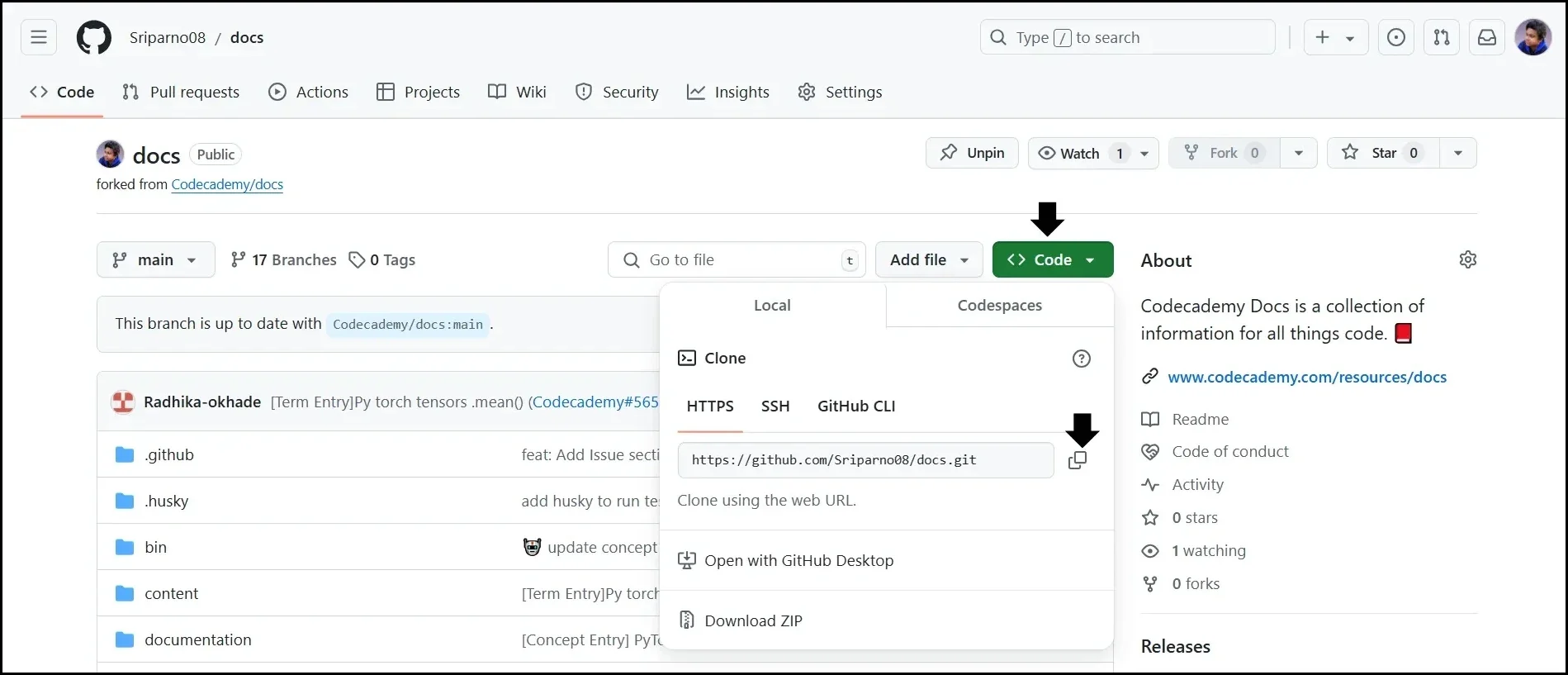
Clone the forked 'docs' repository
After that, open theterminalon your computer and utilize thegit clonecommand to clone the forked repository:
git clone https://github.com/<username>/forked_repository_name.git
Copy to clipboard
git clone https://github.com/<username>/forked_repository_name.gitOnce cloned, navigate to the cloned repository:
cd docs
Copy to clipboard
cd docsNow, before we learn how to delete a local branch, we need tocreateone first in the cloned repository. So, let’s create a branch namedtest1using thegit branchcommand in the terminal:
git branch test1
Copy to clipboard
git branch test1Next, we can delete the newly createdtest1branch using thegit branch -dcommand. This command is a shorthand for thegit branch --delete:
git branch -d test1
Copy to clipboard
git branch -d test1Alternatively, we can use the following command:
git branch --delete test1
Copy to clipboard
git branch --delete test1After we successfully delete the branch, we will receive the following output:
Deleted branch test1
Copy to clipboard
Deleted branch test1Since there are no commits in thetest1branch that are not in the default (main) branch, the branch is successfully deleted.
However, the operation would have failed if there were unique commits in thetest1branch. In that case, we can force a delete by using thegit branch -Dcommand:
git branch -D test1
Copy to clipboard
git branch -D test1Potential Errors and Their Solutions
While deleting local branches, there are some potential errors that can occur. Let’s see what they are and how to solve them.
One of the most common errors we can face while we delete a Git branch locally is the ‘Branch not found’ error. This error occurs when the branch name is spelled wrong. So, we need to ensure that we spell the branch name correctly.
To avoid such errors, verify the branch name by listing all branches using the following command:
git branch
Copy to clipboard
git branchGit doesn’t allow us to delete the branch we’re currently on. We first need to move to another branch and then delete the original branch.
Let’s take thetest1branch, for example. If we’re currently on this branch, we first need to move to another branch (saymain) using thegit switchcommand:
git switch main
Copy to clipboard
git switch mainThen, you can delete thetest1branch:
git branch -d test1
Copy to clipboard
In the next section, we’ll discuss how to delete a branch remotely in Git.
How to Delete a Branch Remotely in Git
Before we look at the process of deleting a remote branch in Git, let’s discuss some common reasons as to why we should be deleting branches remotely.
When to Delete Remote Branches
Scenario 1: If we’ve merged all the changes from a remote branch to the default branch, it indicates that we don’t need that branch anymore, and we can delete it to clean up our repository.
Scenario 2: If we haven’t updated a remote branch for a long time, then we can consider it stale or inactive. In this case, we can delete the branch to keep our repository organized.
Scenario 3: If we no longer need a remote branch because of modifications in the project requirements, then we can delete it to clean up our repository.
Deleting a Branch Remotely in Git
Thegit push -dcommand allows us to delete a remote branch in Git. Here is the syntax for it:
git push remote -d <branch_name>Here,remoteis the remote repository that contains the branch to be deleted andbranch-nameis the name of the branch itself.
Just like thegit branch -dcommand,git push -dcan be alternatively written as:
git push remote --delete branchNow, follow the steps mentioned to understand how to delete a remote branch using thegit push -dcommand.
Firstly, fetch all the remote branches that exist on the forkeddocsrepository using thegit fetchcommand:
git fetch origin
Copy to clipboard
git fetch originHere,originis an alias that replaces the link to the forkeddocsrepository. Git automatically sets this when we enter the cloned repository for the first time.
Next, check the fetched remote branches using thegit branch -rcommand:
git branch -r
Copy to clipboard
git branch -rHere is a sample output:
origin/HEAD -> origin/mainorigin/mainorigin/Aireon_Adding_Substringorigin/PyTorch-Tensors-.mean()origin/agraves.test-branchorigin/cppentryorigin/dotnetorigin/full...
Copy to clipboard
origin/HEAD -> origin/mainorigin/mainorigin/Aireon_Adding_Substringorigin/PyTorch-Tensors-.mean()origin/agraves.test-branchorigin/cppentryorigin/dotnetorigin/full...Now, for instance, if we want to delete thecppentryremote branch, we can use thegit push -dcommand:
git push origin -d cppentry
Copy to clipboard
git push origin -d cppentrygit push origin --delete cppentry
Copy to clipboardgit push origin --delete cppentryThe following output confirms that the remote branch is successfully deleted:
- [deleted]  cppentry
Copy to clipboard
- [deleted] cppentryConcept Review and Next Steps
In this article, we explored the commands that allow us to delete a branch locally and remotely in Git, respectively. By understanding these commands, we can eliminate unnecessary branches, keep our repository clean and organized, and improve efficiency.
To learn more about Git, check outHow to Use Git for Beginnerson Codecademy.
'The Codecademy Team, composed of experienced educators and tech experts, is dedicated to making tech skills accessible to all. We empower learners worldwide with expert-reviewed content that develops and enhances the technical skills needed to advance and succeed in their careers.'
Complete Payment to Unlock Full Guide & Source Code
You are viewing the 30% preview. Join TopCourseAI Pro to unlock the remaining 70% of this article, unblur all code snippets, and gain full access to all 412 technical projects and guides.
Ready to access the complete step-by-step tutorial?
Gain full unhindered access to all 412 technical projects and guides, unblur all source code snippets, and download runnable scripts.
How to Create, List, and Manage Tags in Git
Next BlueprintHow to Deploy Your Vibe Coding Projects for Free
Related Blueprints & Guides
View all 166 →Android Studio Quick-Start Guide
Android Studio often intimidates beginners, but by learning a few handy shortcuts and getting the lay of the land, we can navigate this powerful development environment with ease.
Developer toolsApache Kafka Tutorial: A Complete Guide for Beginners
Apache Kafkais a well-known distributed event streaming platform designed to efficiently manage real-time data feeds. It was originally developed by LinkedIn in 2011 and later open-sourced. Apache Kafka has gained immens...
Developer toolsBuilding Websites with Wix
Creating a website has never been easier. Previously, making a presentable website meant learning HTML, CSS, andJavaScript. The whole process could take weeks, months, or even years before creating a website that you’re...
Ready to build production-grade AI systems?
Enjoyed this guide? Continue exploring our library of 166+ production blueprints, multi-agent swarms, and autonomous agent systems with 100% unblurred, executable source code.