
Programming Locally on a Chromebook
Programming Locally on a Chromebook
Do you have a Chromebook? Are you looking to write code locally or do a Codecademy off-platform project? Then you’ve come to the right place!
First, let’s start with a few questions to determine what set of instructions you should follow.
Was your Chromebook Launched Before 2019?
No, it was launched after 2019: Skip to “Setting Up Your Linux Environment” below.
Yes, it was launched before 2019: If it was launched before 2019, please checkthis article to see if your Chromebook is listed.
If you found your Chromebook on that list, skip to “Setting Up Your Linux Environment” below.
If you did not find your Chromebook on that list, and it was launched before 2019, unfortunately, we don’t have setup instructions for you yet! We will be creating some soon.
Setting Up Your Linux Environment
This process will involve some settings and features you may not have used before. In order to run many of your programs, we’ll need to have Linux set up so we can have access to a Linux terminal. We will use this to download languages, libraries, and IDEs (Integrated Development Environments).
Let’s get started!
- First, click on the gear icon in your taskbar to open the “Settings” menu. If you don’t see this, click on your clock to find the gear to open the “Settings” menu.
- Before we set up your Linux environment, let’s make sure your Chromebook is up to date. At the bottom of your settings menu, you’ll see an “About Chrome OS” option.Click on “About Chrome OS”. This will open a section with a “Check for updates” button. Click “Check for updates” to install any necessary updates to your computer.
- Next, near the bottom of your main settings menu, you will see a little penguin next to an option that says “Linux (Beta)”. Click the “Linux (Beta)” menu item.
- You should now see a section that says: “Linux - Run Linux tools, editors, and IDEs on your Chromebook”. Click the “Turn on” button to turn this setting on.
- A popup window will appear asking if you want to install Linux. Click the “Install” button.
- Wait while Linux installs on your computer.
- Once it completes, a Linux terminal will open on your computer.
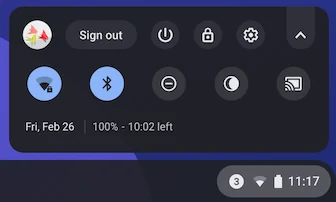
Image of settings
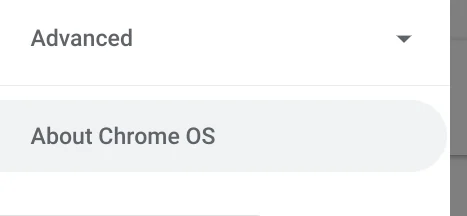
An image showing the option in the menu
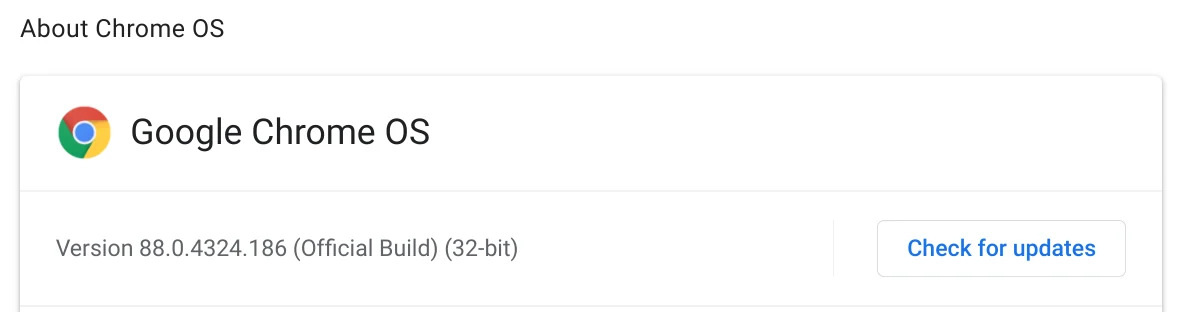
An image showing the button
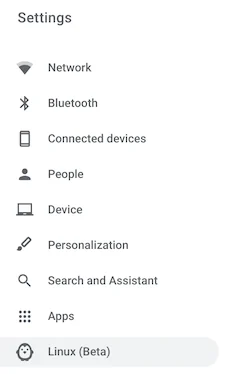
The Linux option is at the bottom of the main settings menu.

Click the Turn on button to turn on this setting.
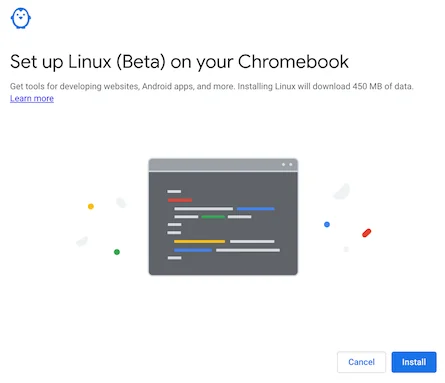
Click install to start the installation

Wait for the installation to complete
yourusername@penguin:~$
Copy to clipboardyourusername@penguin:~$- To finish this section, we’ll check for updates to any current packages and dependencies you have installed by typingsudo apt-get update. On Chromebooks, we will often be usingsudo, a command meaning “superuser do”, to tell our terminal that we are the superuser and that we have permission to run this command.
yourusername@penguin:~$ sudo apt-get update
Copy to clipboard
yourusername@penguin:~$ sudo apt-get updateHow Do I Access a File from the Terminal?
You can use your Linux terminal to access files stored in the “Linux files” section of “My files”. To move files you’ve downloaded from Codecademy into this folder there are a few steps:
- Share your “Downloads” folder with your “Linux Files” folder by right-clicking on “Downloads” and then pressing “Share with Linux”.
- Now, you can move your file to “Linux files” and it will be accessible from your terminal!
- You can also view the files in “Linux files” by going to your terminal and using thelscommand.
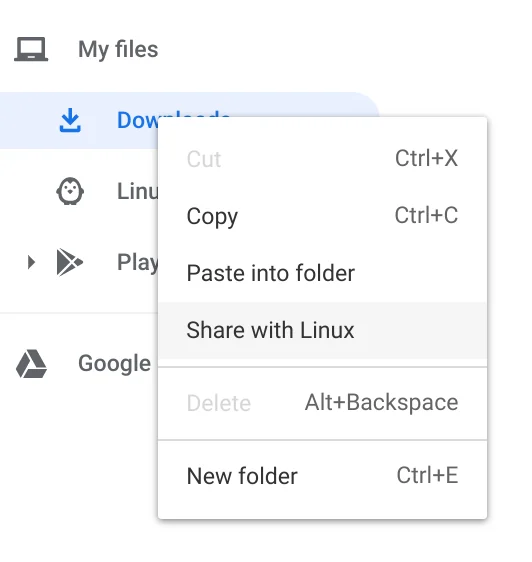
You must share the folder with the Linux files folder
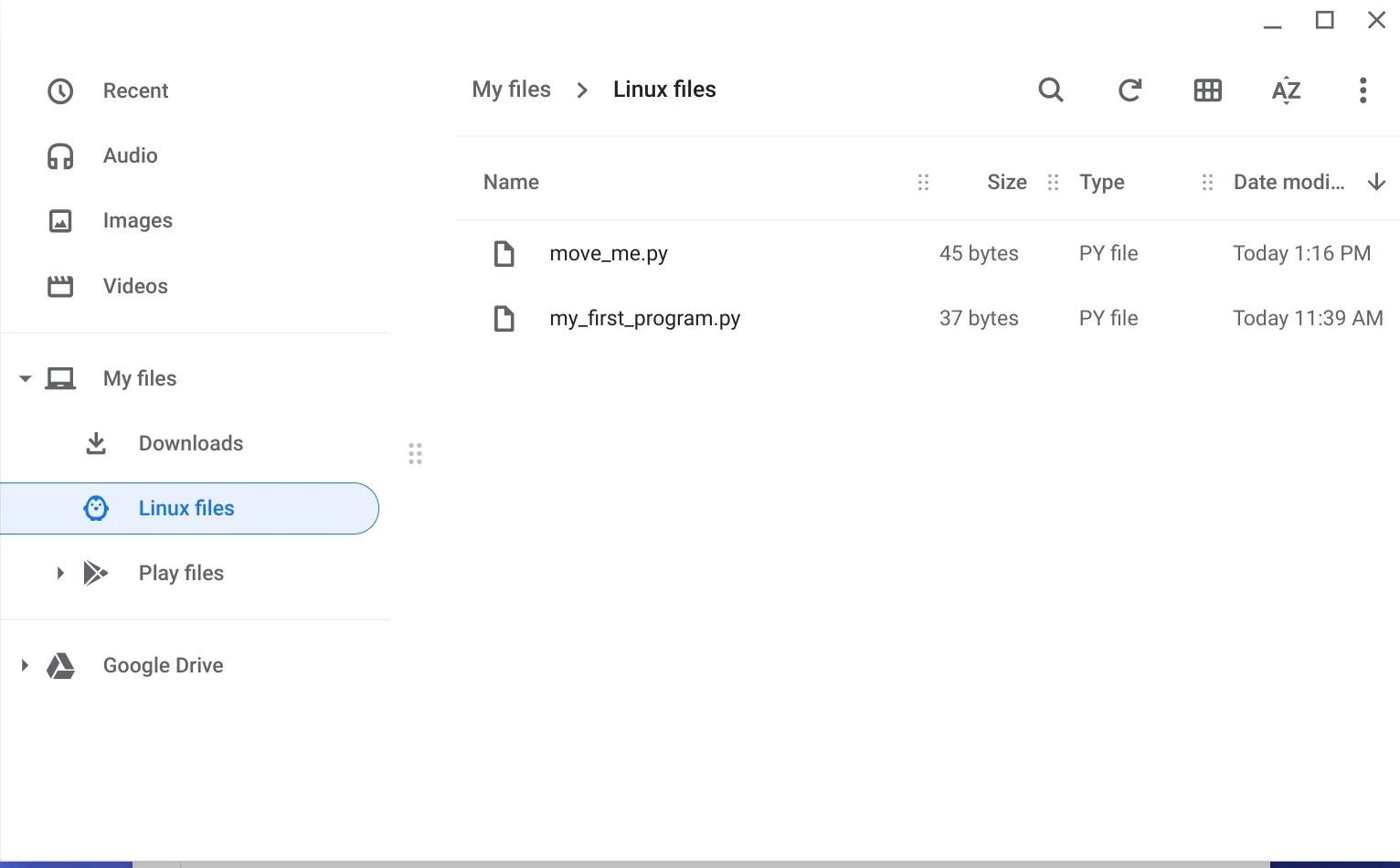
The file now lives in the Linux files folder
yourusername@penguin:~$ lsmove_me.py  my_first_program.py
Copy to clipboard
yourusername@penguin:~$ lsmove_me.py my_first_program.pyProgramming Locally
While there are some limitations toprogramminglocally on your Chromebook, you can still program in many languages.
The following articles will help you set up a specific language or tool on your Chromebook:
- Programming in Python on a Chromebook
- Installing Jupyter Notebook on a Chromebook
- Installing IDLE on a Chromebook
- Web Programming on a Chromebook
'The Codecademy Team, composed of experienced educators and tech experts, is dedicated to making tech skills accessible to all. We empower learners worldwide with expert-reviewed content that develops and enhances the technical skills needed to advance and succeed in their careers.'
Complete Payment to Unlock Full Guide & Source Code
You are viewing the 30% preview. Join TopCourseAI Pro to unlock the remaining 70% of this article, unblur all code snippets, and gain full access to all 412 technical projects and guides.
Ready to access the complete step-by-step tutorial?
Gain full unhindered access to all 412 technical projects and guides, unblur all source code snippets, and download runnable scripts.
Principal Component Analysis
Next BlueprintProgramming in Python on a Chromebook
Related Blueprints & Guides
View all 166 →Android Studio Quick-Start Guide
Android Studio often intimidates beginners, but by learning a few handy shortcuts and getting the lay of the land, we can navigate this powerful development environment with ease.
Developer toolsApache Kafka Tutorial: A Complete Guide for Beginners
Apache Kafkais a well-known distributed event streaming platform designed to efficiently manage real-time data feeds. It was originally developed by LinkedIn in 2011 and later open-sourced. Apache Kafka has gained immens...
Developer toolsBuilding Websites with Wix
Creating a website has never been easier. Previously, making a presentable website meant learning HTML, CSS, andJavaScript. The whole process could take weeks, months, or even years before creating a website that you’re...
Ready to build production-grade AI systems?
Enjoyed this guide? Continue exploring our library of 166+ production blueprints, multi-agent swarms, and autonomous agent systems with 100% unblurred, executable source code.