
Installing Django
Installing Django
Setting Up
Django is a high-level web framework written inPython, used to quickly develop complex database-heavy websites like Instagram, Robinhood, and Youtube.
Since Django is based on Python you’ll need to install bothPython and pip, Python’s package-management software which will allow us to install Django and other third-party packages. Read through and follow ourInstalling Python 3 and Python Packagesarticle if you need some guidance. You can check to see if Python and pip are installed by using the following commands in the command-line tool:
python3 --versionpip --versionIf both were installed properly, the version that was installed will display.
Now that you’ve made sure that your computer has Python and pip, there’s still one more step you need to take before installing Django which is installing a virtual environment.
What’s a Virtual Environment?
Sometimes you’ll need to work on multiple projects on the same computer. However, each project may require installing different third-party packages and libraries. Since you don’t want these packages and libraries from one project to spill over into all of your projects, virtual environments allow you to keep your projects isolated from each other. You can think of it as a protective bubble that allows you to install packages or configure settings without affecting any other projects. First, install a virtual environment and then install Django in the virtual environment.
Installing a Virtual Environment
In this walkthrough, you’ll go over how to install a virtual environment in Windows and MacOS. The first step you’ll need to take is to launch thecommand line interface.
OnWindowsit’s called theCommand Prompt:
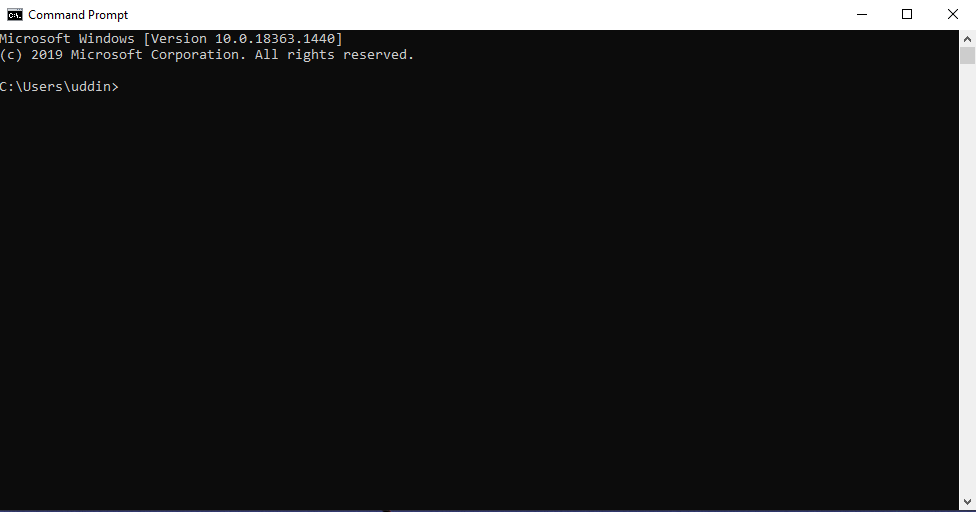
Windows Command Prompt
OnMacit’s called theTerminal:
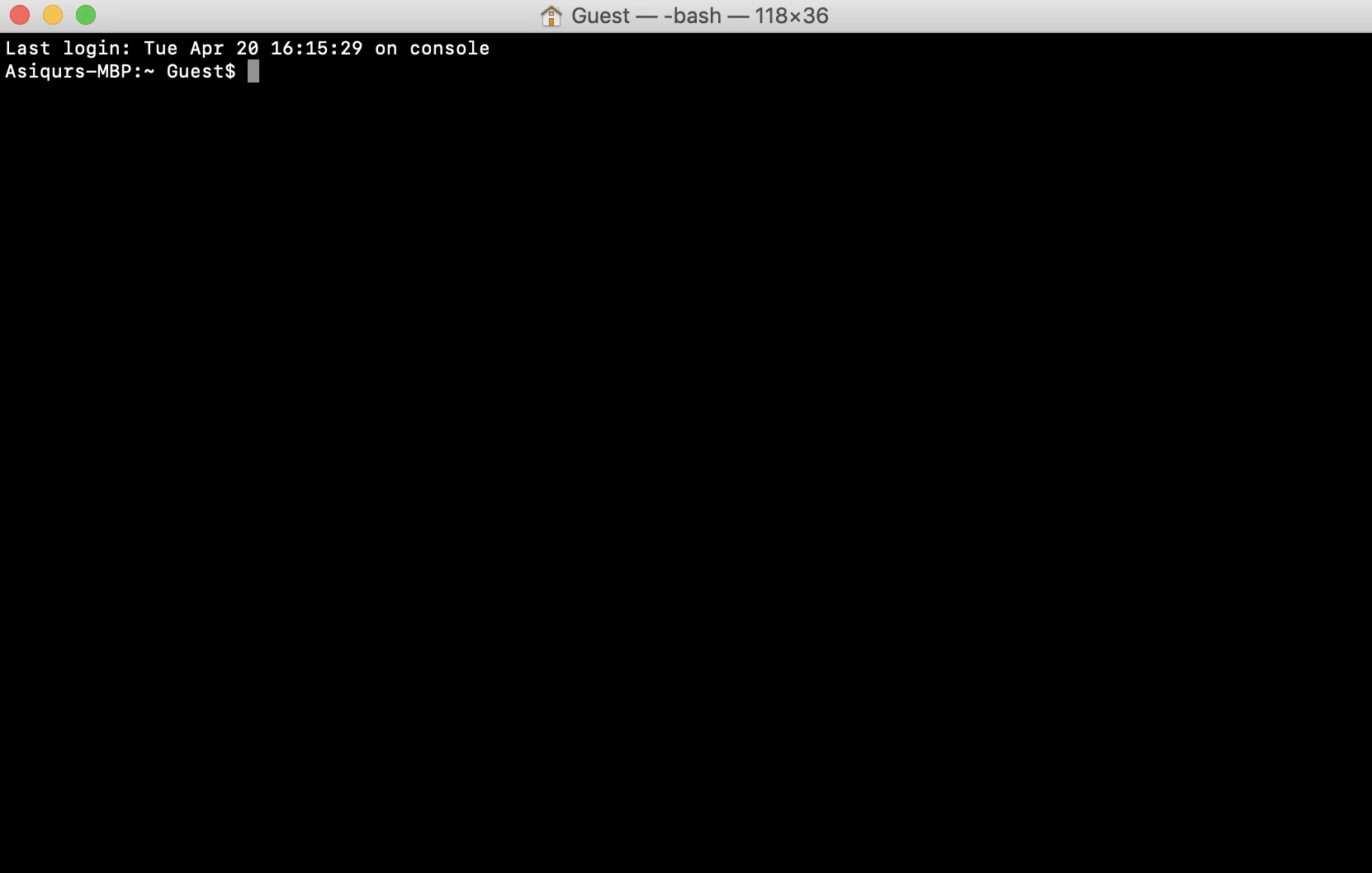
MacOs Terminal
Depending on your operating system you can execute the following commands to install a virtual environment:
- The first command you’ll need to run is:
python3 -m venv project_envThevenvis a module that expects an environment name followed after it. The environment name is what your virtual environment will be called, almost like naming a file. Make sure there are no spaces in the environment name as it wouldn’t be recognized later on, instead use camel case or_or-in place of space. In this case, the example’s environment name isproject_env, but you can name it whatever you want.
- After the command is executed, your environment should be created in a few seconds. There will be no indication that the environment is created, however, you just need to activate it. Activation is a little different depending on what operating system you’re using:
On Windows, you need to begin the command with your environment name followed byScripts\activate.batlike so:
project_env\Scripts\.activate.batOn Mac, you need to begin the command withsourcefollowed by your environment name followed bybin/activatelike so:
source project_env/bin/activateYou can tell if you’re in the virtual environment because your command prompt/terminal will have the name of the environment in parenthesis before every directory like so:(project_env). Same on both Windows and Mac.
On Windows:
(project_env) c:\Users\username>On Mac:
(project_env) username ~ %Installing Django in our virtual environment
Now that you have your virtual environment installed and activated, you can install Django. Installing Django uses the same steps for both Windows and Mac.
- The first command we’ll need to run is
pip3 install djangoThis command will automatically install the latest version of Django for use.
However, if we want to install a specific version of Django we can use the following command:
pip3 install Django==3.2This might be useful if you’re in a team and everyone needs to be in a specific version of Django.
- Whichever command you decide to use, it may take up to 30 seconds or longer to install Django depending on your internet speed. If Django was successfully installed you’ll get a message ofSuccessfully installed django-X.X. Where theX.Xis the version number, like3.2.
- You can further check what version of Django you’re on by using the command:

Django Installation success Message
django-admin --versionConclusion
Congratulations, you learned how to install a virtual environment so that you can properly work on a project on your own computer! Then you were able to install Django in your virtual environment and check what version was installed. Well done on taking your first steps to master Django, have fun creating amazing projects!
'The Codecademy Team, composed of experienced educators and tech experts, is dedicated to making tech skills accessible to all. We empower learners worldwide with expert-reviewed content that develops and enhances the technical skills needed to advance and succeed in their careers.'
Complete Payment to Unlock Full Guide & Source Code
You are viewing the 30% preview. Join TopCourseAI Pro to unlock the remaining 70% of this article, unblur all code snippets, and gain full access to all 412 technical projects and guides.
Ready to access the complete step-by-step tutorial?
Gain full unhindered access to all 412 technical projects and guides, unblur all source code snippets, and download runnable scripts.
Related Blueprints & Guides
View all 166 →Accessibility on the Platform
Codecademy is committed to providing a high-quality learning experience for all learners. That includes accommodating different usage forms such as auditory, motor, or visual restrictions, limited hardware, or other acce...
Web developmentAffordances, Signifiers, and Clickability
For users on the web, the mouse click is perhaps the most fundamental human-computer interaction. The webbecamethe web partially through the power ofhypertext, or text in one document that links to other documents or res...
Web developmentAuthentication and OAuth
Authenticationis the process used by applications to determine and confirm identities of users. It ensures that the correct content is shown to users. More importantly, it ensures that incorrect content is secured and u...
Ready to build production-grade AI systems?
Enjoyed this guide? Continue exploring our library of 166+ production blueprints, multi-agent swarms, and autonomous agent systems with 100% unblurred, executable source code.