
How to Use Stable Diffusion
How to Use Stable Diffusion
Introduction
The evolution of Artificial Intelligence (AI) has been remarkable, progressing from early stages with chatbots like ELIZA to its current application in generating images. Today, AI serves as an invaluable tool in our daily lives. One of the latest advancements in generative AI is Stable Diffusion, a cutting-edge technology capable of generating images based on both textual and imagery-based prompts.
Stable Diffusion has emerged as a leading contender in the AI image generation landscape. Its proficiency lies in producing realistic faces from concise prompts while offering extensive customization options during the image generation process. This article aims to delve into the capabilities of Stable Diffusion, providing a comparative analysis against other AI image generation tools.
Stable Diffusion Image Generation
Stable Diffusion is a unique and complex AI image generator. It can modify each aspect of an image, or create a completely new image from a source image. However, users may find the interface difficult to use at first. Before we dive deep into understanding Stable Diffusion as a tool, let's take a look at how to access Stable Diffusion.
Stable Diffusion stands out as a sophisticated and versatile AI image generator, capable of manipulating various aspects within an image, augmenting existing content, or creating new visual compositions from source images. For new users, its interface may initially present some difficulty. Before exploring Stable Diffusion's functionalities, let's explore how to access and utilize this tool effectively.
Developed by Stability AI, Stable Diffusion is accessible through the suite of AI tools known as Clipdrop available at Clipdrop. However, note that access to Stable Diffusion via Clipdrop requires the Pro version, which is a paid subscription.
Stable Diffusion via Clipdrop is no longer free. It requires the Pro version of Clipdrop.

Image of Clipdrop Pricing Tiers
Stable Diffusion is an open-source product. Other websites, such as Stable Diffusion Web, integrate Stable Diffusion to provide features to their users. Stable Diffusion Web offers image generation features, albeit with fewer options compared to Clipdrop.
One of the most remarkable aspects of Stable Diffusion is its utilization of Negative Prompts. Negative Prompts enable users to specify what elements to avoid during image generation, preventing unintended image features.
Moreover, Stable Diffusion boasts an extensive array of customization options. Users can modify original images or generate entirely new images based on a source image. Leveraging the comprehensive tools within Clipdrop, users can crop, refine, adjust lighting, and access numerous other features embedded in Stable Diffusion.
However, there are some drawbacks to consider. Utilizing Stable Diffusion via the Stability AI website incurs a minimum cost of $13(USD) per month. Additionally, navigating the interface can be somewhat challenging, requiring users to transition between different tools to apply additional effects.
We will walk through an example of how to use Stable Diffusion. Let's use ChatGPT to create an image prompt for Stable Diffusion to create an image of a dog and a cat lying together near a fireplace that we can later download.
Here is the prompt generated by ChatGPT:
A heartwarming and cozy scene featuring a dog and a kitten peacefully lying together on a soft mat in front of a crackling fireplace inside a charming house. The room should exude warmth and comfort, with soft lighting and inviting decor. The dog and kitten should appear content and relaxed, showcasing a genuine bond. Capture the essence of tranquility and companionship in this domestic setting. Pay attention to details like the texture of the mat, the flickering flames in the fireplace, and the overall cozy atmosphereTo place this prompt in Stable Diffusion, access the platform through Clipdrop (Pro version required).
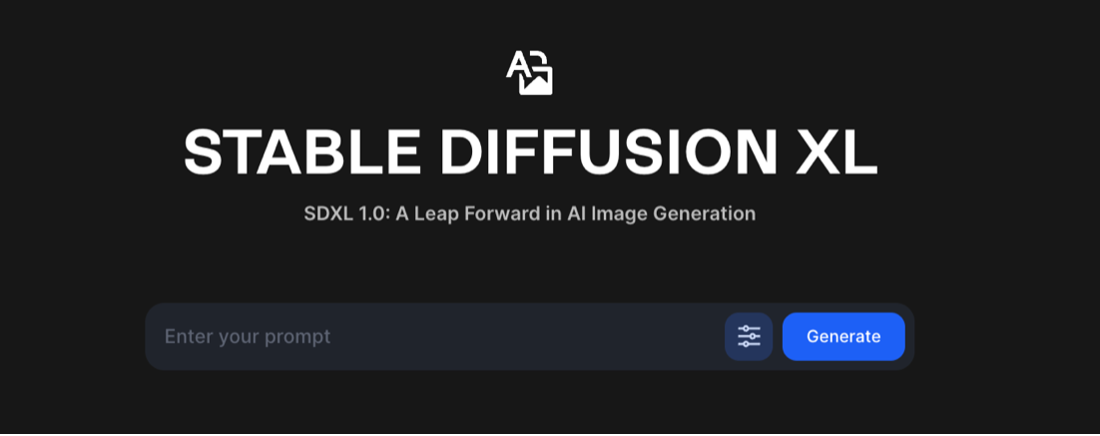
Image of Stable Diffusion Home Page Prompts
Upon inputting the prompt, Stable Diffusion generates four images, each portraying the described scene.
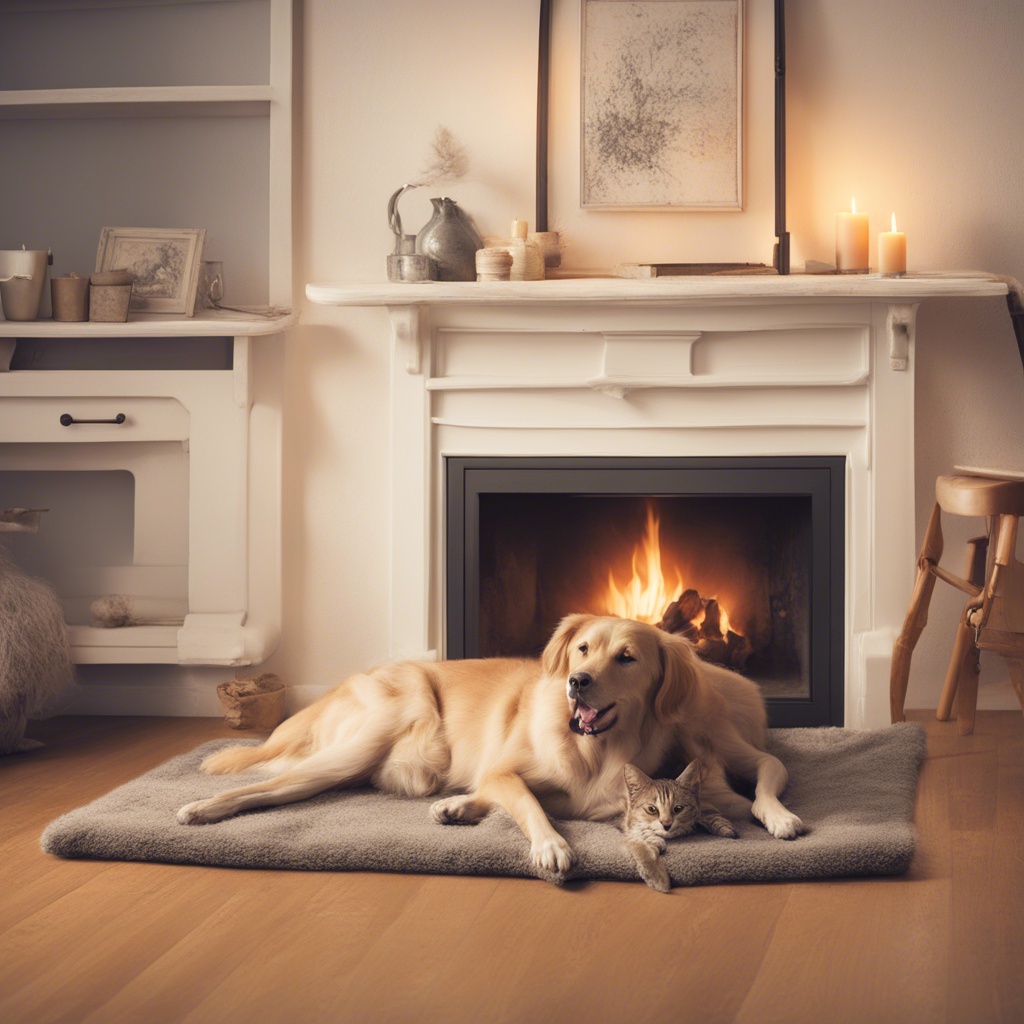
Stable Diffusion Generated Image 1

Stable Diffusion Generated Image 2
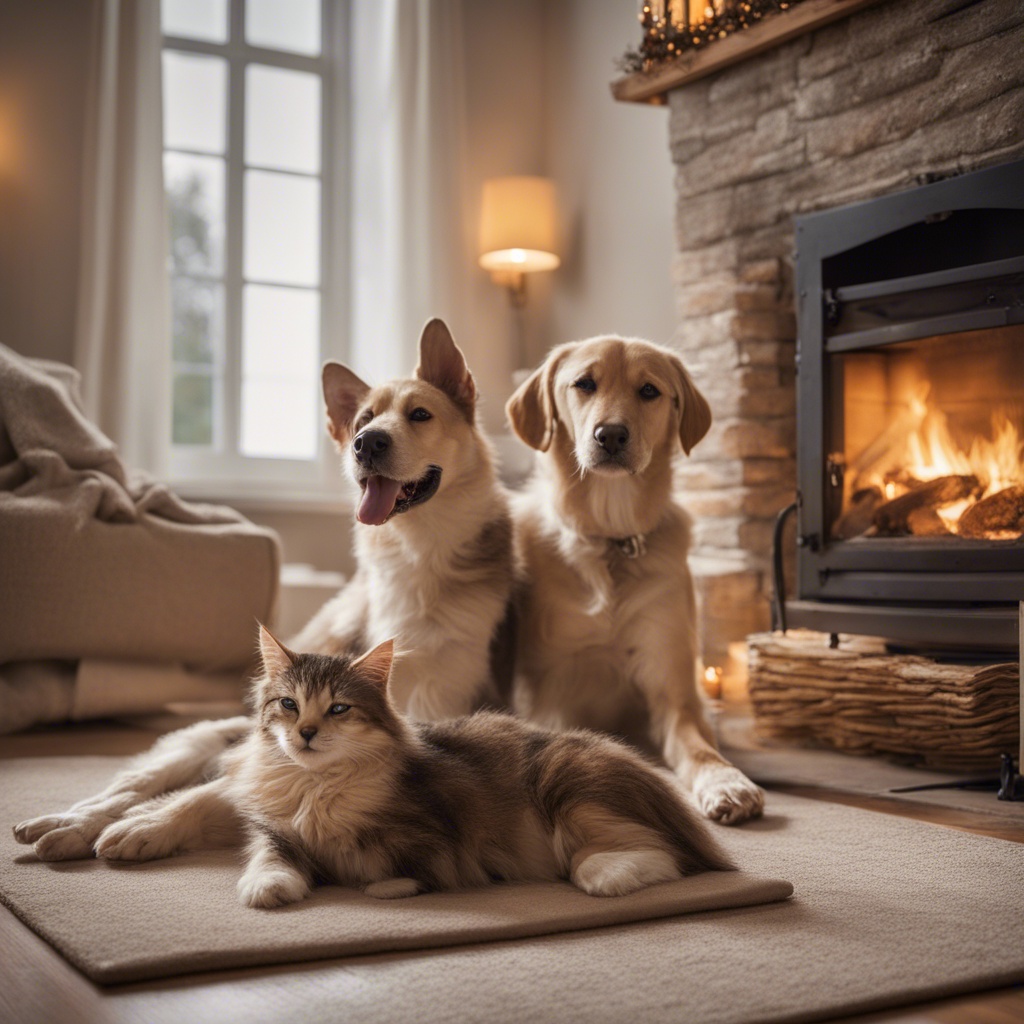
Stable Diffusion Generated Image 3
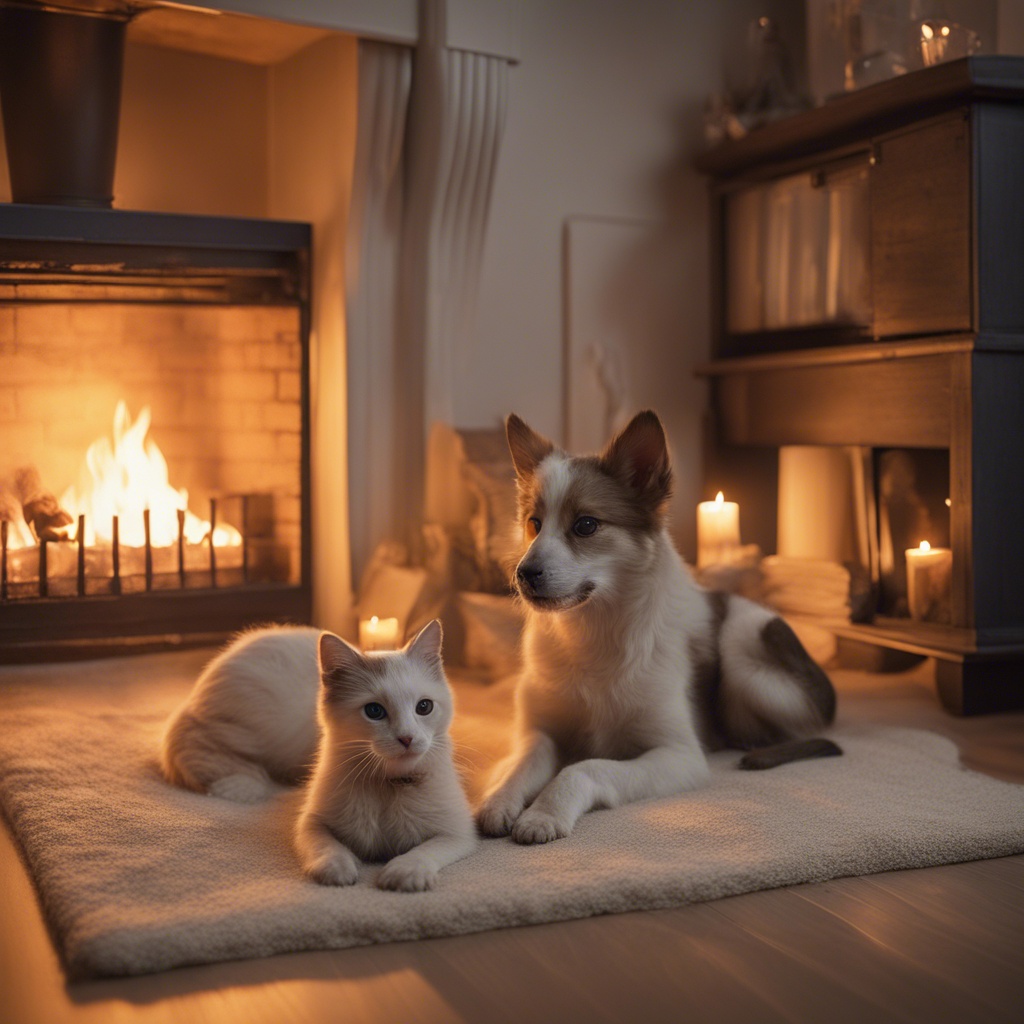
Stable Diffusion Generated Image 4
Most of the images look really good! There is one image that looks a bit strange, do you see it?
We'll use Stable Diffusion's unique feature to modify these images. First, we press the back button at the top left. Then, we'll add a negative prompt to minimize some of the deficiencies, such as the extra limbs in the first image.
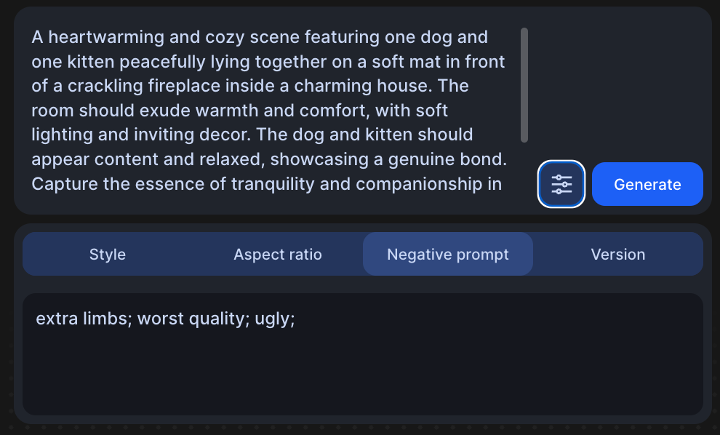
Image of Using Stable Diffusion Negative Prompt
Here are the resulting images:

Stable Diffusion Generated Image with Negative Prompt 1

Stable Diffusion Generated Image with Negative Prompt 2
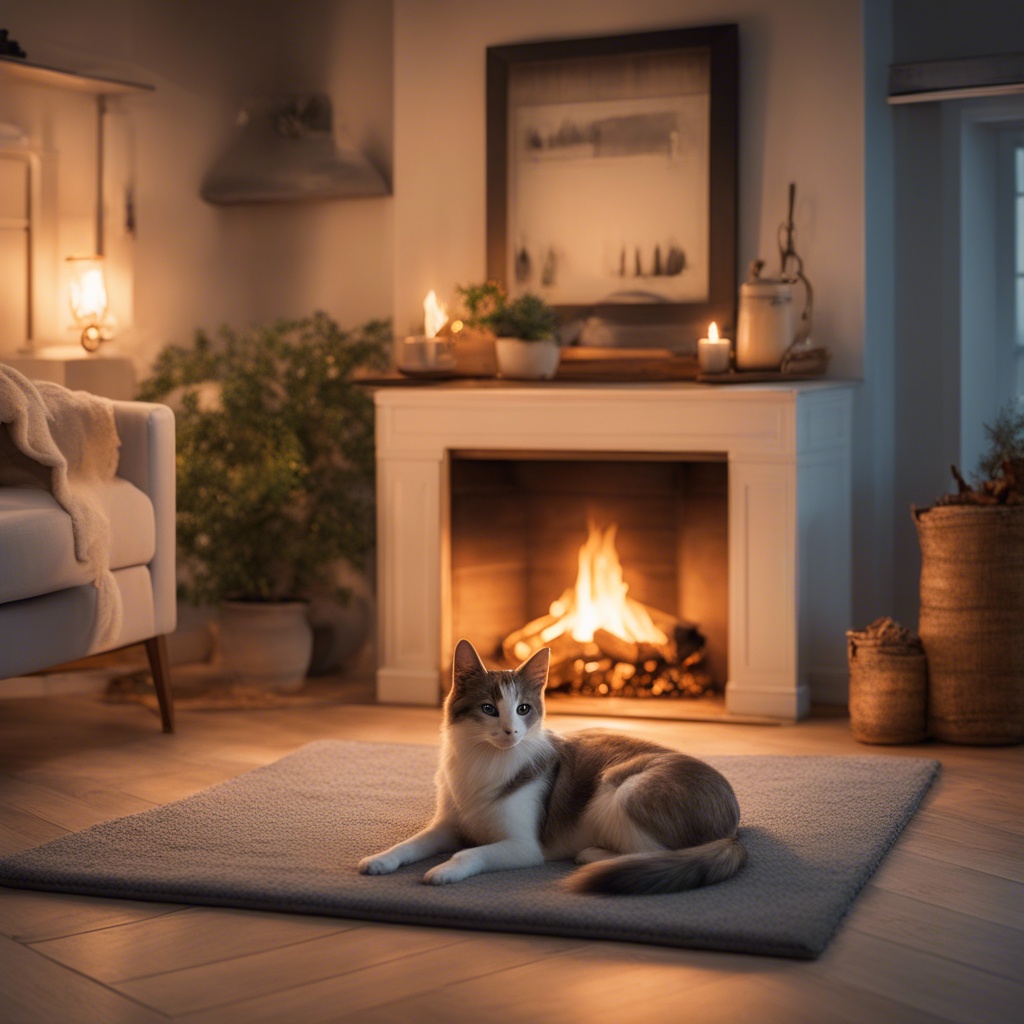
Stable Diffusion Generated Image with Negative Prompt 3

Stable Diffusion Generated Image with Negative Prompt 4
Not perfect, but definitely better! I know it seems strange but saying "extra limbs; worst quality; ugly;" are indicating the features to avoid during image generation.
Stable Diffusion is not only capable of image generation, but it can also edit our images. Once an image is generated, we can click the Edit button at the top right to access any of the following features:
- Remove Background
- Cleanup Imperfections
- Relight
- Upscale
- Reimagine
- Uncrop
- Replace Background
- Sky Replacer
Let's take a look at how Stable Diffusion compares to the other AI image generators.
Other Image Generators
While Stable Diffusion showcases remarkable capabilities in image generation, there are other powerful AI generators like DALL-E and Midjourney. Let's examine the distinguishing features and functionalities that set these three tools apart.
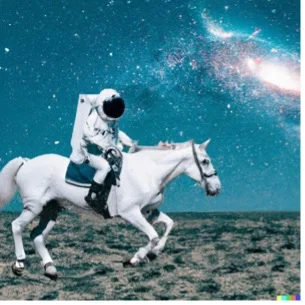
Image of an astronaut riding a horse in photorealistic style generated by DALL-E
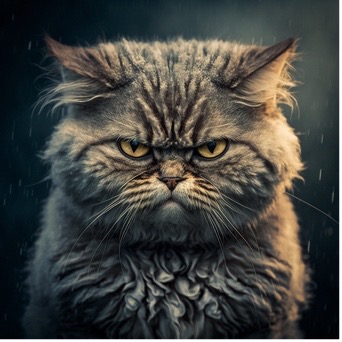
An angry cat generated by Midjourney
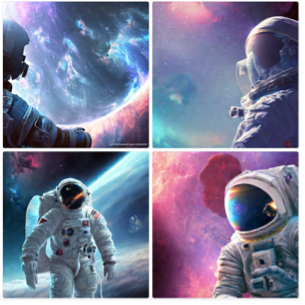
Four different images of an astronaut looking at a nebula as a hyperdetailed digital art generated by Stable Diffusion
Here's a concise summary of the AI image generating tools:
Midjourney: A comprehensive and powerful tool that handles extensive prompts, accommodating text and text and image-based input. It is known for generating mostly accurate imagery. Its images look like paintings.
DALL-E: The most user-friendly tool among the three, capable of generating distinctive drawings, paintings, or photos by skillfully combining specific elements from generated imagery to create unique images.
Stable Diffusion: A highly customizable AI tool that allows us to specify what we don't want, resulting in remarkably accurate image generation. Trained on most of the images of its competitors, it generates four images for its users to choose from. The generated images are photorealistic or digital illustrations.
The choice between these generators often depends on the specific requirements of the user or project. For those seeking highly detailed and imaginative creations, DALL-E might be preferable. Meanwhile, individuals aiming for realistic visualizations might find Midjourney more suitable. Stable Diffusion's appeal lies in its customization capabilities, making it an excellent choice for those who seek control over image generation.
Conclusion
Stable Diffusion has solidified its position as a frontrunner in the realm of AI-driven image generation, excelling in both text-to-image and image-to-image creation. Its unparalleled expertise in rendering human features, especially faces and hands, is a testament to its prowess in this domain. Trained on an extensive dataset of approximately 5 billion text-to-image examples, Stable Diffusion stands out as one of the most extensively trained AI models for image generation.
In comparison to its competitors, Stable Diffusion emerges prominently in two significant aspects:
- Negative Prompts: Offering users the ability to specify what elements to avoid during image generation sets Stable Diffusion apart. This feature minimizes unwanted or unintended aspects, allowing for greater control and precision in the generated images.
- Photorealistic Imagery: Among its strengths, Stable Diffusion shines in producing images with a remarkable semblance to reality. The generated visuals often exhibit high levels of realism and authenticity, contributing to its appeal in various applications.
Negative Prompts: Offering users the ability to specify what elements to avoid during image generation sets Stable Diffusion apart. This feature minimizes unwanted or unintended aspects, allowing for greater control and precision in the generated images.
Photorealistic Imagery: Among its strengths, Stable Diffusion shines in producing images with a remarkable semblance to reality. The generated visuals often exhibit high levels of realism and authenticity, contributing to its appeal in various applications.
Moreover, what distinguishes Stable Diffusion is its post-generation image modification capabilities. Users can refine, tweak, or adjust the generated images extensively, catering to specific requirements and ensuring a perfectly generated image. Stable Diffusion's ongoing evolution and its exceptional capabilities in generating realistic, customizable, and contextually relevant images prove it to be a valuable tool in generating incredible images.
If you are interested in reading more about how Generative AI can be applied in your daily life, please check out our AI Catalog of articles!
'The Codecademy Team, composed of experienced educators and tech experts, is dedicated to making tech skills accessible to all. We empower learners worldwide with expert-reviewed content that develops and enhances the technical skills needed to advance and succeed in their careers.'
- Introduction
- Stable Diffusion Image Generation
- Other Image Generators
- Conclusion
Complete Payment to Unlock Full Guide & Source Code
You are viewing the 30% preview. Join TopCourseAI Pro to unlock the remaining 70% of this article, unblur all code snippets, and gain full access to all 412 technical projects and guides.
Ready to access the complete step-by-step tutorial?
Gain full unhindered access to all 412 technical projects and guides, unblur all source code snippets, and download runnable scripts.
How to Use Perplexity AI: Build 3 Projects Step-by-Step
Next BlueprintHow to Use llama.cpp to Run LLaMA Models Locally
Related Blueprints & Guides
View all 166 →A Complete Guide to Vercel's AI SDK
Vercel AI SDK is a powerful TypeScript-first toolkit that provides a unified interface for building AI applications with Next.js and other modern frameworks. It eliminates the traditional complexity of managing multiple ...
AI Agents & AutomationAG-UI: How the Agent-User Interaction Protocol Works
AG-UI (Agent-User Interaction Protocol) is an open, lightweight protocol that standardizes the way AI agents interact with frontend apps. Consider it a common language that eliminates the need for custom integration code...
Generative AI FoundationsAI vs Generative AI: Understanding the Difference
Artificial Intelligence, or AI, is everywhere, from chatbots helping you shop to recommendation engines suggesting your next binge. Yet not all AI is the same, and the term is often used loosely, leaving many confused be...
Ready to build production-grade AI systems?
Enjoyed this guide? Continue exploring our library of 166+ production blueprints, multi-agent swarms, and autonomous agent systems with 100% unblurred, executable source code.