
Spinning Up A Local Server
Spinning Up A Local Server
Prerequisites
Before you begin, make sure that you have the following tools installed on your computer:
- VS Code
- An Internet browser (ChromeorFirefoxare preferred).
Context: What does “Spinning Up A Server” Really Mean?
You’ve probably heard this term being thrown out in tech-speak-ey conversations on the internet and wondered: what does it mean to “spin up a server” and how can you do it?
Aserveris a computer that can provide some service to another computer. A common kind of server is aweb serverwhichhosts(stores) the code for a website in its memory and provides a URL whereclients(the users of the internet) can access that code. When a web server receives a request, it sends the code over the internet to the client’s browser viaHypertextTransferProtocol (HTTP).
“Spinning up” a server refers to the discs in the hard-drive of a server physically spinning up to speed to serve their contents.
When developing a new web application, it can be useful to test how your website is served via HTTP before hosting publicly. This is wherelocalhostcomes in. You can think oflocalhostas a personal web server URL that can be configured to:
- host content accessible from a particular directory (folder).
- serve content via HTTP (accessible from your computer only).
Visitinghttp://localhostthus mimics the experience of accessing content served via HTTP. This can be incredibly helpful if the content being served is highly dependant upon being served via HTTP.
The section below will walk you through how to configurelocalhostto serve content via HTTP using the code editor VS Code and the extension Live Server.
Spinning Up a Local Server Using Live Server and VS Code
- We recommend using Visual Studio Code (VSCode) in this tutorial. If you don’t have it and need help installing VSCode, you can find a more in-depth tutorial in our article aboutinstalling VSCode.
- Open VSCode and navigate to the “Extensions” view which can be found on the left-hand sidebar. Search for and install the “Live Server” plugin.
- Use VSCode to create a new file calledindex.htmland place the code below inside. Then save the file.<!-- index.html --><html><head><title>My Website</title></head><body><p>Hello World</p></body></html>Copy to clipboard
- Click the “Go Live” button at the bottom-right-hand corner of VSCode to start a server on port 5500. This will also prompt your browser to open a new window/tab that loads yourindex.htmlfile.
- Make changes to your website file and save the file. This will automatically refresh your browser page and you should see the changes you’ve made.
- When you’re done with editing, click the button that contains the port number of your server (by default it’s 5500) to shut down the server.
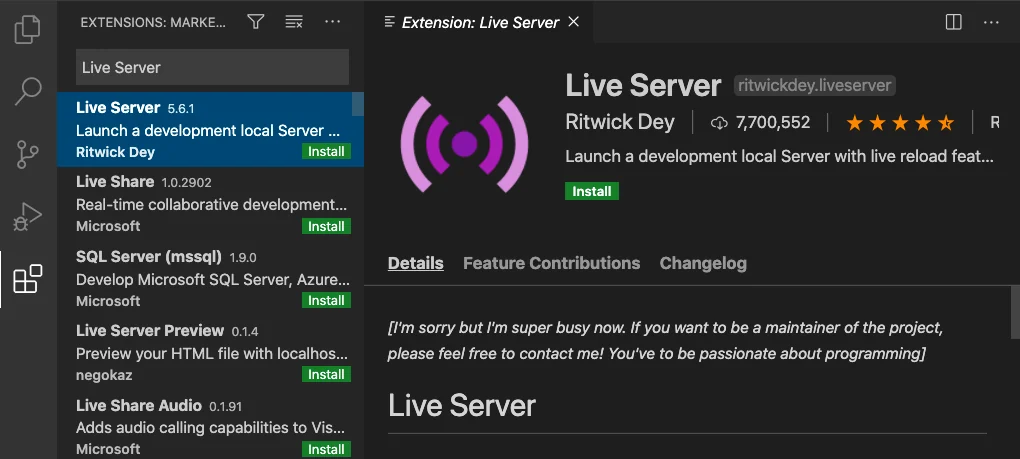
The Live Server extension can be found by searching in the Extensions view on the left-hand sidebar of VS Code.
<!-- index.html --> <html>  <head>    <title> My Website </title>  </head>  <body>    <p> Hello World </p>  </body></html>
Copy to clipboard
<!-- index.html --> <html> <head> <title> My Website </title> </head> <body> <p> Hello World </p> </body></html>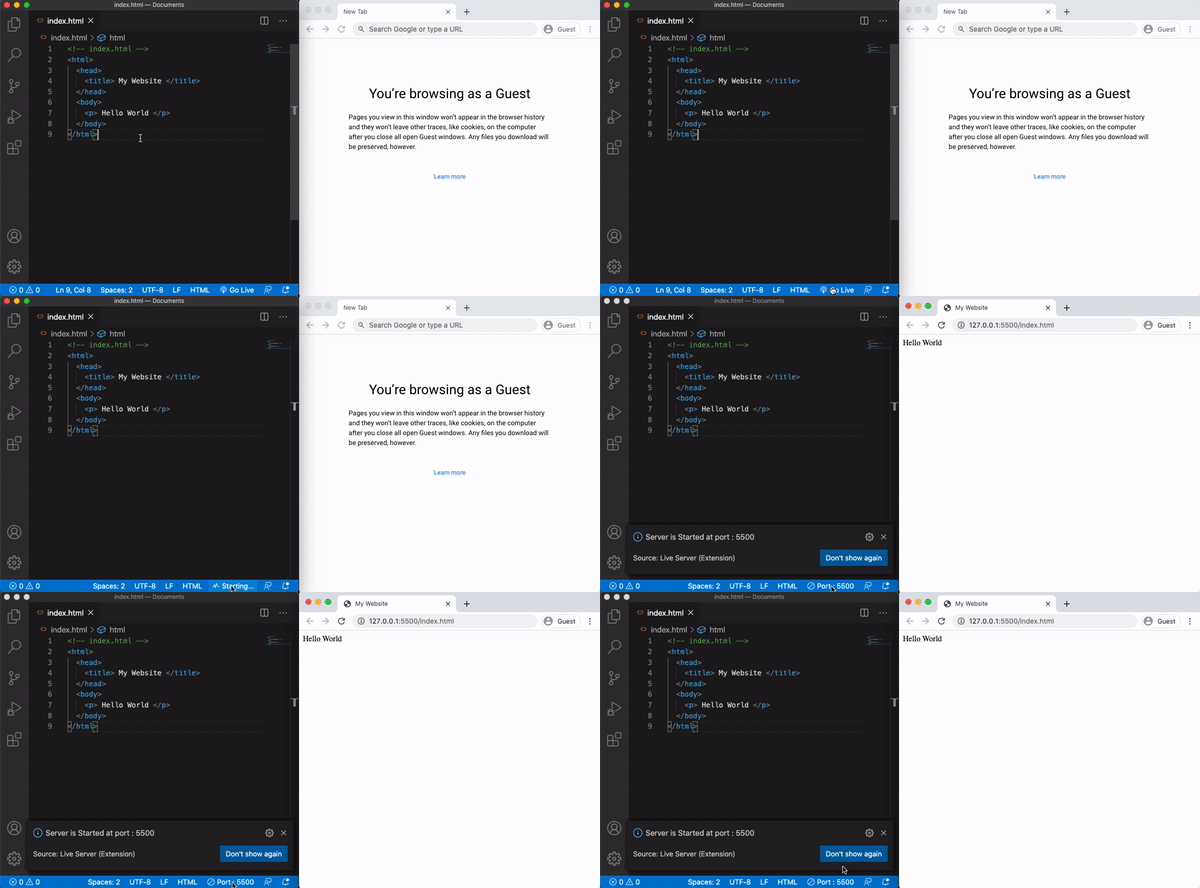
Animated gif. Pressing the "Go Live" button starts a server at port 5500. A new tab is opened in default browser with 127.0.0.1:5500 appears in the address bar and the served content is rendered.
Some additional resources:
- Now that you know more about setting up a local development server, check out our tutorial article onDeveloping a Phaser.js game locallyto practice these skills.
- Learn another way of setting up a local testing server:using python commands in the terminal!.
'The Codecademy Team, composed of experienced educators and tech experts, is dedicated to making tech skills accessible to all. We empower learners worldwide with expert-reviewed content that develops and enhances the technical skills needed to advance and succeed in their careers.'
Complete Payment to Unlock Full Guide & Source Code
You are viewing the 30% preview. Join TopCourseAI Pro to unlock the remaining 70% of this article, unblur all code snippets, and gain full access to all 412 technical projects and guides.
Ready to access the complete step-by-step tutorial?
Gain full unhindered access to all 412 technical projects and guides, unblur all source code snippets, and download runnable scripts.
Related Blueprints & Guides
View all 166 →Accessibility on the Platform
Codecademy is committed to providing a high-quality learning experience for all learners. That includes accommodating different usage forms such as auditory, motor, or visual restrictions, limited hardware, or other acce...
Web developmentAffordances, Signifiers, and Clickability
For users on the web, the mouse click is perhaps the most fundamental human-computer interaction. The webbecamethe web partially through the power ofhypertext, or text in one document that links to other documents or res...
Web developmentAuthentication and OAuth
Authenticationis the process used by applications to determine and confirm identities of users. It ensures that the correct content is shown to users. More importantly, it ensures that incorrect content is secured and u...
Ready to build production-grade AI systems?
Enjoyed this guide? Continue exploring our library of 166+ production blueprints, multi-agent swarms, and autonomous agent systems with 100% unblurred, executable source code.