
How to Create a Website
How to Create a Website
Introduction
When building a website, whether professionally or as a hobby, there are some easy steps to make sure that you start correctly. You will need a text editor installed on your computer. If you don’t have one, clickhereto read an article on how to install one. By the end of this article, you will be able to make a website on your computer as easily as you can on Codecademy!
Follow along with this video:
First, you must set up the correct file structure for your project. As your projects grow to include different types of files (such as CSS), it will be very important for your directory to be formatted in the way detailed below so that web browsers can correctly locate, interpret, and render your files.
Exercise I: Set up your directory
- If you do not already have one, set up a directory (also called a folder) on your computer where you will store all of yourprogrammingprojects. Here at Codecademy, we recommend naming this directoryprojectsbut you may call it whatever you like.
- Inside theprojectsdirectory, make a new folder called “hello_html.” Note that it is important to exclude spaces in your directory names, so we are using an underscore here.
Exercise II: Open your project folder
- Open your text editor (Atom orSublime Text) and add thehello_htmlfolder. In Atom, you may do this by clicking File > Add Project Folder, then navigating to yourhello_htmldirectory, and clickopen.
- Right clickhello_htmland select New File to make a new file. Save that file asindex.html.
Note:Whenever you make a website, it’s a best practice to name the homepage “index” so that the browser knows to interpret this page as a homepage. Also, other developers who open your project can easily navigate to the home page.
When you are creating a new web page, it’s always helpful to start with HTML boilerplate code. You can do this two different ways. If you typehtmlthen hit thetabkey, your text editor will likely fill in the important information for you. Atom may add<meta charset="utf-8">. Feel free to leave it or delete it. If thetabkey doesn’t work, you can manually add the following code:
<!DOCTYPE html><html>  <head>    <title></title>  </head>  <body>      </body></html>
Copy to clipboard
<!DOCTYPE html><html> <head> <title></title> </head> <body> </body></html>Exercise III: HTML Boilerplate
- Inindex.htmltype html, then press thetabkey. If that does not work, copy and paste the above boilerplate code into your file.
- Inside of the title tag, name your website “Hello, HTML!”
- Inside of the body tag, use an<h1>tag to give your website a heading.
- Save your file!
When you visit a website in your browser, you might navigate directly to the page you wish to see, such ashttps://www.codecademy.com/learn/learn-html-css. This is called a Uniform Resource Locator, or a URL. A URL tells a browser where to locate a resource (or file). The URL above tells the browser to request thelearn-html-cssresource from inside of thelearndirectory from codecademy.com.
A browser is simply a piece of software that can interpret and render HTML files (just like you might use a media player to listen to music or Microsoft Word to view a .docx file).
A URL is the same as a file path or the path to find a file on your computer. By default, most text editors display the file tree on the left side of the application. If your file tree is not visible in Atom, go to View > Toggle Tree View. Your file tree should look something like this:
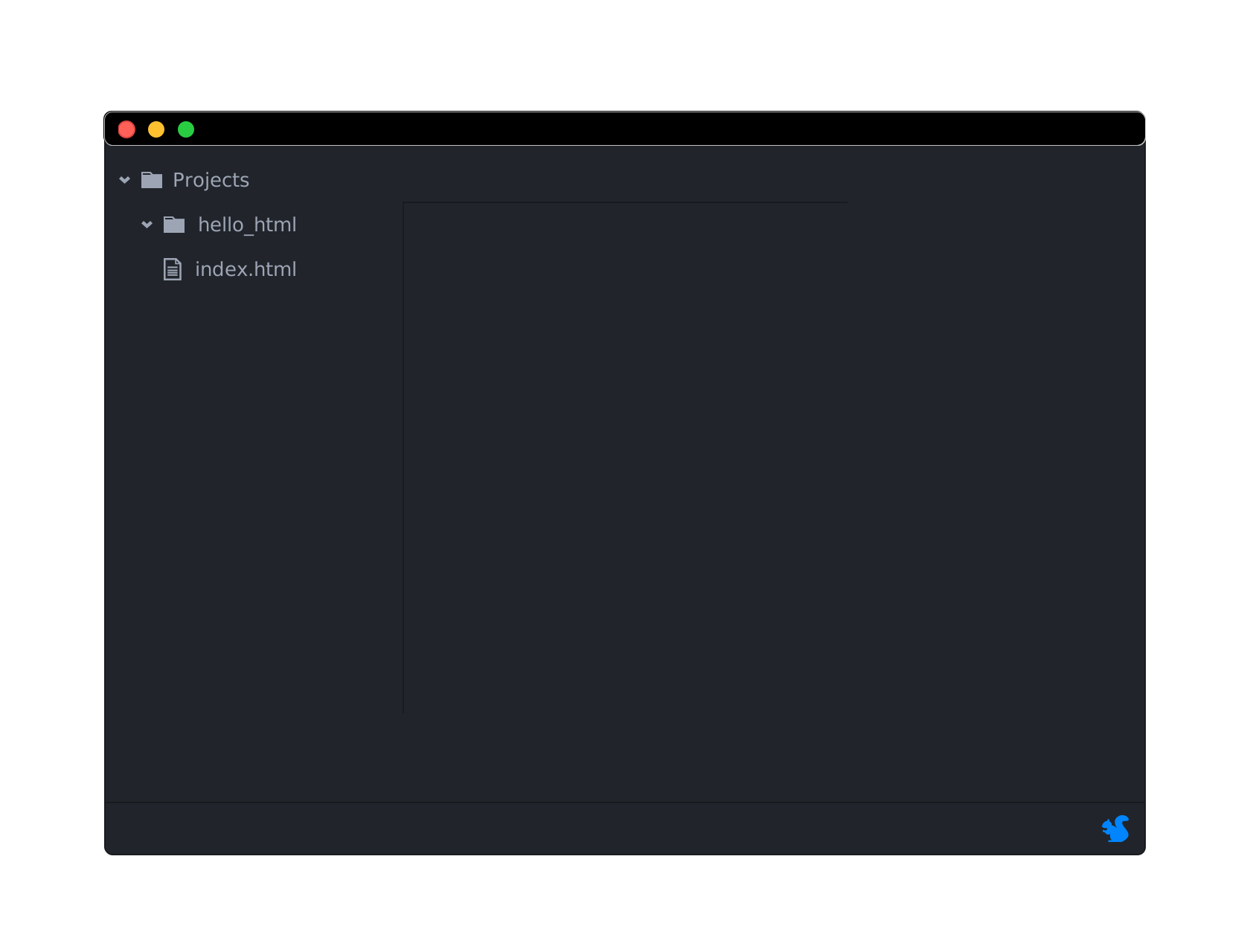
File tree
At the top of the tree, there is a directory calledprojectsand inside ofprojectsthere ishello_htmlwhich containsindex.html. If your “projects” folder is inside of the Documents folder on a Mac, your file path should look something like:
/Users/YourName/Documents/projects/hello_html/index.html
This path guides your browser from your root directory, then to your YourName folder, then inside of Documents, then projects, thenhello_html, then index.html. The/symbol indicates different folders.
Files that are saved on your computer are calledlocalURLs:
The file path refers to a file located on your local computer — this is considered a local file path.
There is a major difference between your local file path andhttps://www.codecademy.com/learn/learn-html-css, aremotepath. Codecademy.com is not a directory on your computer - it is on Codecademy’s computer (or server). To view a file in Codecademy.com’s directory, your computer makes a request to Codecademy. If Codecademy allows the request, then it sends a file, likelearn-html-css.html, and your browser displays it.
When you type the address of a website into your browser, the browser requests the website from its owner and renders it for you. The prefixhttpstands forHyperTextTransferProtocol, which refers to the protocol by which the HTML file from another server is transferred to your computer. In modern browsers, you don’t usually need to typehttpbecause the browser includes it for you.
When you’re working on your website locally, it is a good practice to open it in your browser and see what it looks like as you make changes. There are several ways that you can do this.
- You can drag and drop your file from your file manager into Chrome.
- In the toolbar in Chrome you can click File > Open File and then navigate to index.html.
- You can type the path we found in section 2, beginning withfile://. For example, you might typefile:///Users/YourName/Documents/projects/hello_html/index.html.
- In Atom, you can find your path by selecting the file in the file tree, right-clicking, and selecting “Copy Full Path.” Paste it into the Chrome.
Exercise IV: Previewing your HTML document in Chrome
- Navigate to yourindex.htmlfile and open it in your web browser. The browser tab should say “Hello, HTML!” and your header should be displayed in your browser window.
Exercise V: Make a change
- Currently, your website only has a single<h1>element. Add a paragraph of text to your HTML file in your text editor. Save your changes, then refresh the browser page in Chrome to see your changes.
Congratulations! You’ve set up the file tree for your first project, added the boilerplate code for the homepage of your website, and found and navigated to a local URL. Add some more content to your page using HTML tags and refresh the page to see your changes!
'The Codecademy Team, composed of experienced educators and tech experts, is dedicated to making tech skills accessible to all. We empower learners worldwide with expert-reviewed content that develops and enhances the technical skills needed to advance and succeed in their careers.'
Complete Payment to Unlock Full Guide & Source Code
You are viewing the 30% preview. Join TopCourseAI Pro to unlock the remaining 70% of this article, unblur all code snippets, and gain full access to all 412 technical projects and guides.
Ready to access the complete step-by-step tutorial?
Gain full unhindered access to all 412 technical projects and guides, unblur all source code snippets, and download runnable scripts.
How to Create a Custom GPT?
Next BlueprintHow to Create and Use an OpenAI ChatGPT API Key
Related Blueprints & Guides
View all 166 →Accessibility on the Platform
Codecademy is committed to providing a high-quality learning experience for all learners. That includes accommodating different usage forms such as auditory, motor, or visual restrictions, limited hardware, or other acce...
Web developmentAffordances, Signifiers, and Clickability
For users on the web, the mouse click is perhaps the most fundamental human-computer interaction. The webbecamethe web partially through the power ofhypertext, or text in one document that links to other documents or res...
Web developmentAuthentication and OAuth
Authenticationis the process used by applications to determine and confirm identities of users. It ensures that the correct content is shown to users. More importantly, it ensures that incorrect content is secured and u...
Ready to build production-grade AI systems?
Enjoyed this guide? Continue exploring our library of 166+ production blueprints, multi-agent swarms, and autonomous agent systems with 100% unblurred, executable source code.