
Getting Started with the Wix Editor
Getting Started with the Wix Editor
What is the Wix Editor?
Now that you have a Wix account, you probably got started with one of Wix’s website templates. The next step is to add your own personalized touch! This can mean creating additional elements like images or videos to your site or more pages for your audience to explore. Whatever your needs may be, the Wix Editor is jammed packed with features to help you out. There’s even a helpfularticlefor more guidance.
The Wix Editor has many sections to choose from based on your own site, for example:
- Menus & Pages - add new pages and create a site navigation menu
- Background - add a background or edit an existing background
- Add - create new elements like text, buttons, forms, and more
- Add Apps - incorporate an existing app into your site
- Media - find and upload images and videos
- My Blog - make a dedicated blog
- Content Manager - maintain your site’s data
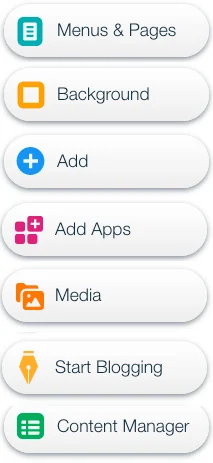
Wix Editor Menu
As you add more elements, like a store, or a booking application, the number of selections also increases!
There are so many options to explore, so we’ll focus on some very common actions:
- Adding a background
- Adding a text element
- Editing a text element
Adding a background
Backgrounds are extremely important for the overall feel and design of a website. Your template should already include a background but like so many other things, Wix gives you even more freedom.
To add a different background click on theBackgroundsection to show even more options. TheColorbutton allows you to apply a solid background color. TheImageandVideobuttons will prompt you to upload your media of choice to use on your website. There is also a whole collection of images and videos that you can choose from to set as your background.
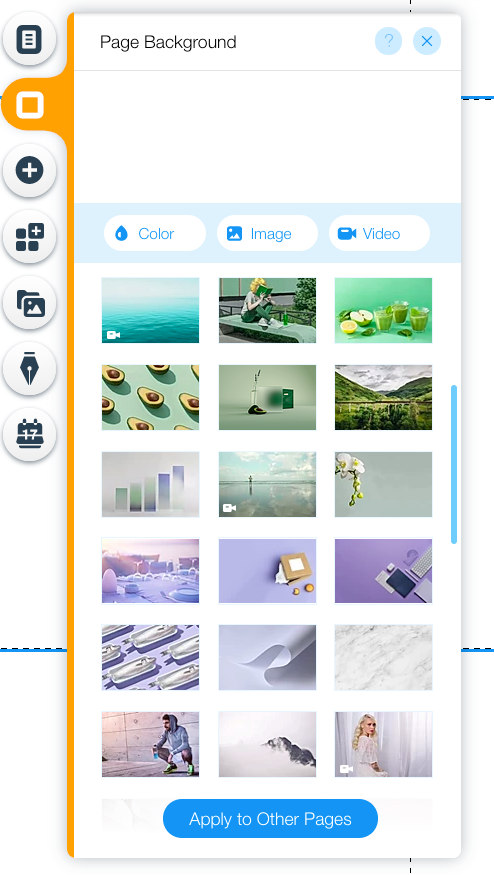
Apply a background on Wix site
Click on the “Apply to Other Pages” button on the bottom if you want to see all this background on all of your website’s pages.
Adding Elements: Text
Text is one of the most common elements on a website, it gives you a chance to provide a message to your audience!
To get started, click on theAddbutton and select theTextoption at the very top. Select a type and style that suits your needs. Double click the option to place it right in the middle of your page. You can also save some time by dragging and dropping the element to exactly where you want it to go.
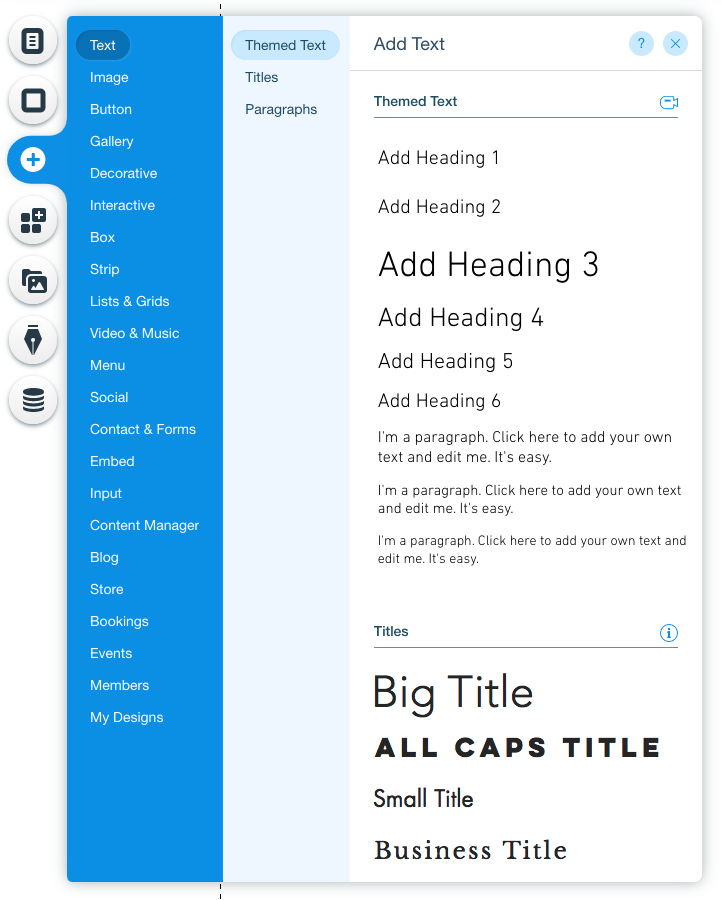
Adding Text
Editing Elements: Text
Naturally, the text that comes by default needs to be touched up. You can directly edit the text by clicking on it to select the element. Use theEdit Textbutton to bring up more options. You should now see theText Settingspop up with the settings: Themes, Fonts, Size, etc. Browse through the many available settings and personalize it to your liking.
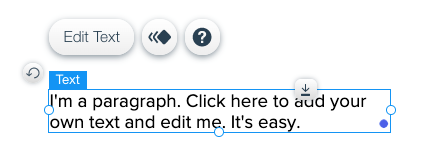
Editing Text
Half the fun is adding elements and playing around with its aesthetic until you get it just right!
Viewing
Websites are meant to be shared, but you should know how your website looks like before it’s live on the internet. ClickPreviewto see your website from your audiences’ point of view. Once your website is up to your standards, clickPublishto share it on the internet!
'The Codecademy Team, composed of experienced educators and tech experts, is dedicated to making tech skills accessible to all. We empower learners worldwide with expert-reviewed content that develops and enhances the technical skills needed to advance and succeed in their careers.'
Complete Payment to Unlock Full Guide & Source Code
You are viewing the 30% preview. Join TopCourseAI Pro to unlock the remaining 70% of this article, unblur all code snippets, and gain full access to all 412 technical projects and guides.
Ready to access the complete step-by-step tutorial?
Gain full unhindered access to all 412 technical projects and guides, unblur all source code snippets, and download runnable scripts.
Getting Started with Visual Studio Code and Building HTML Websites
Next BlueprintGetting User Input in Node.js
Related Blueprints & Guides
View all 166 →Accessibility on the Platform
Codecademy is committed to providing a high-quality learning experience for all learners. That includes accommodating different usage forms such as auditory, motor, or visual restrictions, limited hardware, or other acce...
Web developmentAffordances, Signifiers, and Clickability
For users on the web, the mouse click is perhaps the most fundamental human-computer interaction. The webbecamethe web partially through the power ofhypertext, or text in one document that links to other documents or res...
Web developmentAuthentication and OAuth
Authenticationis the process used by applications to determine and confirm identities of users. It ensures that the correct content is shown to users. More importantly, it ensures that incorrect content is secured and u...
Ready to build production-grade AI systems?
Enjoyed this guide? Continue exploring our library of 166+ production blueprints, multi-agent swarms, and autonomous agent systems with 100% unblurred, executable source code.