
Getting started with Node Package Manager
Getting started with Node Package Manager
Note: This article assumes that you have some experience withNode.js and Node.js modules.
What are dependencies in Node.js?
As you may have learned, when developingNode.jsapplications, developers have access to a number of core modules that come preshipped when you install Node.js onto your machine.
In addition to these core Node.js modules, developers can also take advantage of modules created by other developers, many of which areshared freely. These third-party modules often solve common problems and simplify the development process. When we use these modules in our code, they are referred to asdependencies.
Let’s say you’re working on an app that needs to handle various formats of dates — a common and surprisingly difficult task! You could write your own code to handle the date and time manipulation, or you could usea modulecreated by another developer (or developers) that has all the functionality you need.
Using dependencies is an essential aspect of efficiently creating modern web applications — we don’t have to reinvent the wheel each time we want to include new functionality. Furthermore, well-maintained modules usually solve many edge cases that you would otherwise have to seek out and implement yourself.
In the Codecademy learning environment, we’ll handle the installation of any Node.js packages you may need. When developing your own projects on your own machines, however, knowing how to install and manage these third-party modules is an essential skill.
How does a package manager help in Node.js
So, where do you go to find these dependencies? Most of the time, these dependencies are installed inpackageshandled by apackage manager. A package is simply a third-party module wrapped up with the list of that module’s own dependencies.
Wait, modules can be dependent on other modules?!
Yes! This is both a blessing and a curse. This ever-growing chain of modules means that modules can solve more and more complex problems over time while making development lightning-quick. However, managing modules that are dependent on other modules that are dependent on even further modules can be quite cumbersome to handle on your own.
We avoid these troubles by using a package manager, an indispensable tool that:
- downloads and installs the packages to be used as dependencies on a project
- checks the packages to make sure they don’t have any known vulnerabilities
- checks if packages can be updated to a newer version
- handles all of the packages’ sub-dependencies
- cleanly removes all the files of a package when it’s no longer needed
- provides a repeatable and consistent process of installing dependencies for you and your teammates
The most popular package manager isNodePackageManager, ornpm, which is the default package manager for Node.js. Its command-line tool,npm, is even included in the Node.js installation process. This tool enables developers to download and manage packages via the terminal.
Note: Technically,npm is NOT an abbreviation of “Node Package Manager”, but this coincidence has led to the terms becoming somewhat synonymous. Regardless, it is a helpful way of remembering what npm is used for.
The rest of this article will get you familiar with thenpmecosystem and walk you through installing a third-party Node.js package. Feel free to follow along!
Before we get started, check that you have thenpmcommand-line tool installed on your computer by typingnpm -vin the terminal to look up the npm version. If the command returnscommand not found, double-check yourlocal Node configuration.
How to initialize a Node.js project using npm
Initializing a Node.js app that utilizesnpmis a relatively straightforward process. To initialize a Node.js app, we open up a terminal and enter the command:
npm initThis will result in a series of prompts asking us forinformation about our project, including our project’s name, version number, and description. Once the prompts have been completed, apackage.jsonfile will be generated with the information listed inJSONformat:
{  "name": "my-project",  "version": "1.0.0",  "description": "a basic project",  "main": "index.js",  "scripts": {    "test": "echo \"Error: no test specified\" && exit 1"  },  "author": "Super Coder",  "license": "ISC",  "dependencies": {    "express": "^4.18.2"  },}
Copy to clipboard
{ "name": "my-project", "version": "1.0.0", "description": "a basic project", "main": "index.js", "scripts": { "test": "echo \"Error: no test specified\" && exit 1" }, "author": "Super Coder", "license": "ISC", "dependencies": { "express": "^4.18.2" },}Quick tip: If you’re looking to get initialized quickly, you can add the flag-yto the end of the initialization command to skip the prompts like so:npm init -y.
Direct your attention to the"dependencies"dictionary in the file above. This section lists all of the project’s dependencies alongside their version numbers. Importantly, as you install new dependencies usingnpm, this file will be automatically updated to maintain the most up-to-date picture of the packages used in the application. As you can see, this project already has the popular routing packageexpresslisted as a dependency.
How to install a package using npm
There are over 1 million packages in the npm registry created by developers just like you, and you can explore the collection on theofficial npm website.
Another popular Node.js package isnodemon, a tool used to automatically restart a program when a file changes, alleviating the need to do so manually each time you save a file. You can enter “nodemon” in the search bar of the npm website, or just Google “nodemon npm” to get to theofficial package page.
Each package’snpmpage includes information on using the package, stats about the package, and a link to theGitHubrepository. At the top of the right sidebar, you’ll see the install command:
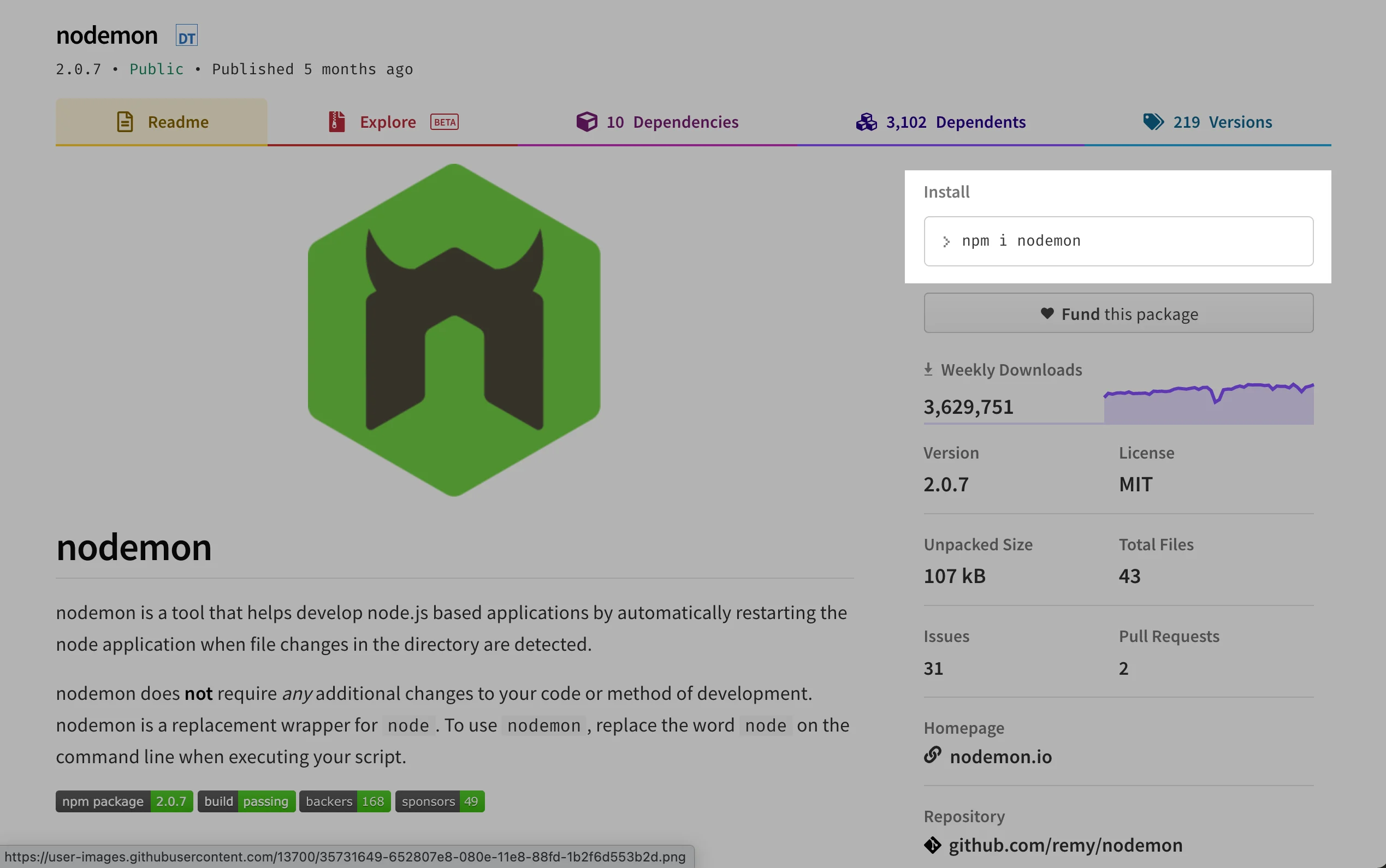
npm website showing install command
In this case:
npm i nodemonNote:iis actually an alias forinstall, and eithernpm iornpm installcan be used when installing a package.
Thenpm i <package name>command installs a packagelocallyin a folder callednode_modules/which is created in the project directory that you ran the command from. Additionally, the newly installed package will be added to thepackage.jsonfile:
{  "name": "my-project",  "version": "1.0.0",  "description": "a basic project",  "main": "index.js",  "scripts": {    "test": "echo \"Error: no test specified\" && exit 1"  },  "author": "Super Coder",  "license": "ISC",  "dependencies": {    "express": "^4.18.2",    "nodemon": "^3.1.10"  }}
Copy to clipboard
{ "name": "my-project", "version": "1.0.0", "description": "a basic project", "main": "index.js", "scripts": { "test": "echo \"Error: no test specified\" && exit 1" }, "author": "Super Coder", "license": "ISC", "dependencies": { "express": "^4.18.2", "nodemon": "^3.1.10" }}Different ways to install npm packages
Generally, most npm packages should be installed locally — this way, among other reasons, each project can control which specific versions of its dependencies it uses. That being said, there are a few other ways you might install packages.
How to install devDependencies in npm
While most dependencies play a direct role in the functionality of your application,development dependenciesare used for the purpose of making development easier or more efficient.
In fact, thenodemonpackage is actually better suited as a development dependency since it makes developers’ lives easier, but makes no changes to the app itself. To installnodemonas a development dependency, we can add the flag--save-dev, or its-Dalias.
npm install nodemon --save-devDevelopment dependencies are listed in the"devDependencies"property ofpackage.json. This indicates that the package is being used specifically for development and will not be included in a production release of the project.
{  "name": "my-project",  "version": "1.0.0",  "description": "a basic project",  "main": "index.js",  "scripts": {    "test": "echo \"Error: no test specified\" && exit 1"  },  "author": "",  "license": "ISC",  "dependencies": {    "express": "^4.18.2"  },  "devDependencies": {    "nodemon": "^3.1.10"  }}
Copy to clipboard
{ "name": "my-project", "version": "1.0.0", "description": "a basic project", "main": "index.js", "scripts": { "test": "echo \"Error: no test specified\" && exit 1" }, "author": "", "license": "ISC", "dependencies": { "express": "^4.18.2" }, "devDependencies": { "nodemon": "^3.1.10" }}Like local packages, development dependencies are also stored in the localnode_modules/folder.
How to install global packages in npm
Some packages can be installedglobally, meaning they are available system-wide, without the need to install them each time you create a new application. Typically, packages installed this way will be used in the command-line rather than imported into a project’s code. One such example is thehttp-serverpackagewhich allows you to spin up a zero-configuration server from anywhere in the command-line.
To install a package globally, use the-gflag with the installation command:
npm install http-server -ghttp-serveris a good package to install globally since it is a general command-line utility, and its purpose is not linked to any specific functionality within an app.
Unlike local package dependencies or development dependencies, packages installed globally will not be listed in a project’spackage.json, and they will be stored ina separate, globalnode_modules/folder.
How to install all project dependencies at once
You may have noticed that, as we install third-party packages from npm, we are creating apackage.jsonfile for our own project. Doing so turns our own project into a package, just one that isn’t published in the npm registry (yet).
While you may never end up publishing your project as a public package, having thispackage.jsonfile enables you to easily collaborate with other developers. Anyone who wishes to work with you on your project can simply download your project, including thepackage.json, and run the command:
npm iRunning this command will automatically install all packages listed as dependencies or development dependencies. If you wish to leave out development dependencies, you can run the command with the--productionflag.
npm i --productionBecause of this convenient command, it is recommended that you do not include your local *node_modules/folder in any repository that you use to store and share your code to avoid taking up unnecessary storage resources.
Conclusion
Congratulations on getting started with Node Package Manager andnpm! You now have a deeper understanding of packages and the various ways to usenpmto install and maintain third-party modules in our code.
Learn to manage dependencies in Node.js with Codecademy’sLearn Node.jscourse. You’ll get hands-on experience with npm, modules, and project setup.
'The Codecademy Team, composed of experienced educators and tech experts, is dedicated to making tech skills accessible to all. We empower learners worldwide with expert-reviewed content that develops and enhances the technical skills needed to advance and succeed in their careers.'
Complete Payment to Unlock Full Guide & Source Code
You are viewing the 30% preview. Join TopCourseAI Pro to unlock the remaining 70% of this article, unblur all code snippets, and gain full access to all 412 technical projects and guides.
Ready to access the complete step-by-step tutorial?
Gain full unhindered access to all 412 technical projects and guides, unblur all source code snippets, and download runnable scripts.
Getting User Input in Node.js
Next BlueprintGit Commit Amend: Complete Guide with Examples
Related Blueprints & Guides
View all 166 →Accessibility on the Platform
Codecademy is committed to providing a high-quality learning experience for all learners. That includes accommodating different usage forms such as auditory, motor, or visual restrictions, limited hardware, or other acce...
Web developmentAffordances, Signifiers, and Clickability
For users on the web, the mouse click is perhaps the most fundamental human-computer interaction. The webbecamethe web partially through the power ofhypertext, or text in one document that links to other documents or res...
Web developmentAuthentication and OAuth
Authenticationis the process used by applications to determine and confirm identities of users. It ensures that the correct content is shown to users. More importantly, it ensures that incorrect content is secured and u...
Ready to build production-grade AI systems?
Enjoyed this guide? Continue exploring our library of 166+ production blueprints, multi-agent swarms, and autonomous agent systems with 100% unblurred, executable source code.